
Project resource and cost planning: setup and daily use
Resources is a register of the project file: what this build will consume, planned as lines. Each line names a resource type of employees, subcontractors, equipment, tools or material, plus a quantity, a unit, a unit cost and a deployment period, and those give the planned cost per line and per type. Every line carries an approval status, and anything applied from a template or proposed automatically starts as approval pending.
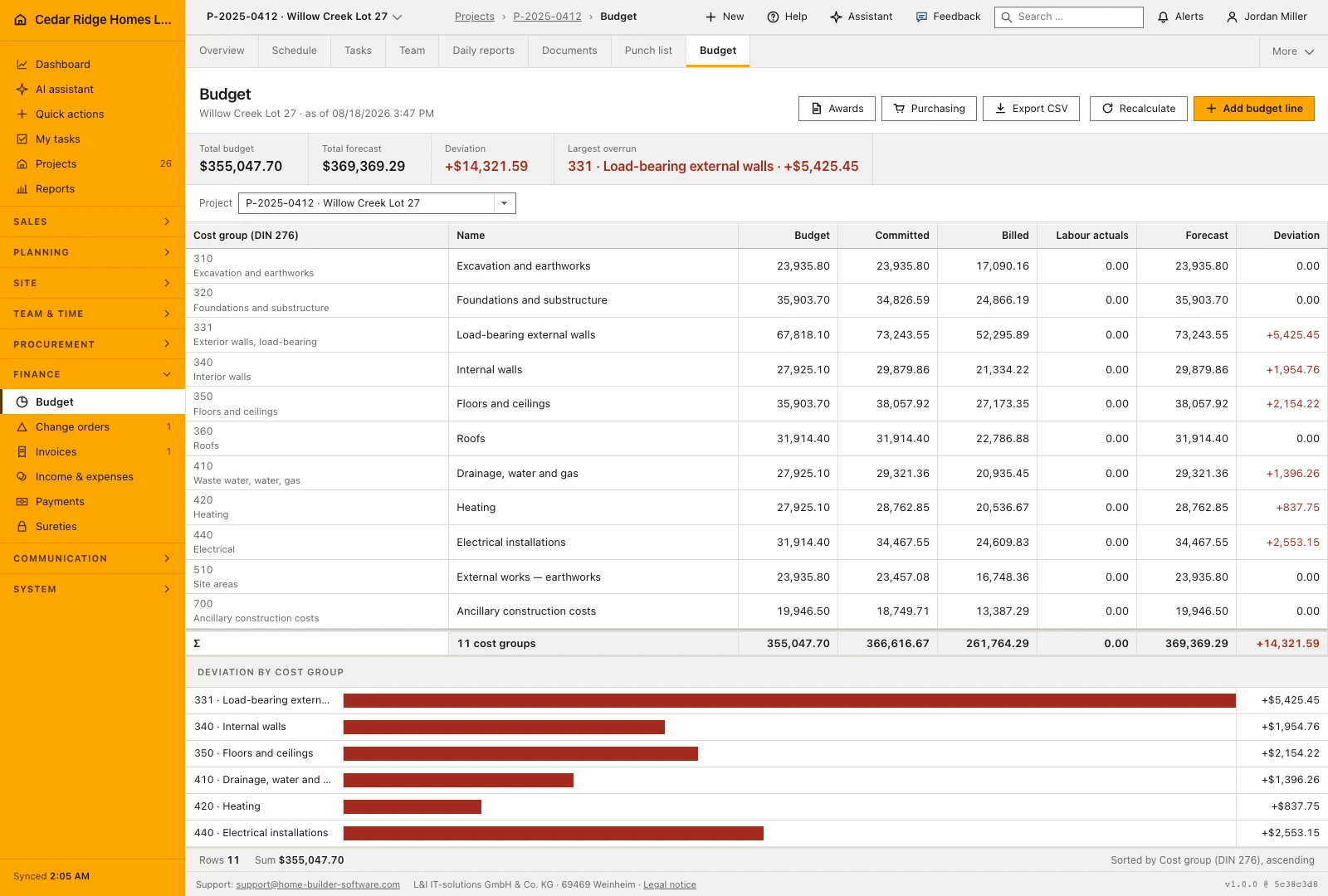
Schedule hours, employee cost rates and project management rights
Open Resources from the project file, beside the schedule and the budget. Reading needs projects.view, while creating, editing, approving, rejecting and working with templates all need projects.manage, and every view stays inside the company and project scope of whoever is looking. There is no company-wide resource screen: a line always belongs to one job, which is why the register sits inside the file rather than in the sidebar.
Two inputs make the automatic proposal worth running. The schedule needs estimated hours on its activities, because the proposal takes their sum, and the project needs a start and an end date, which become the deployment period. The employee running the job should carry an hourly cost, or the proposal arrives at a unit cost of zero and says nothing about money. Supplier and equipment records let a line point at a real thing rather than a name.
Adding a resource line with quantity, unit and unit cost
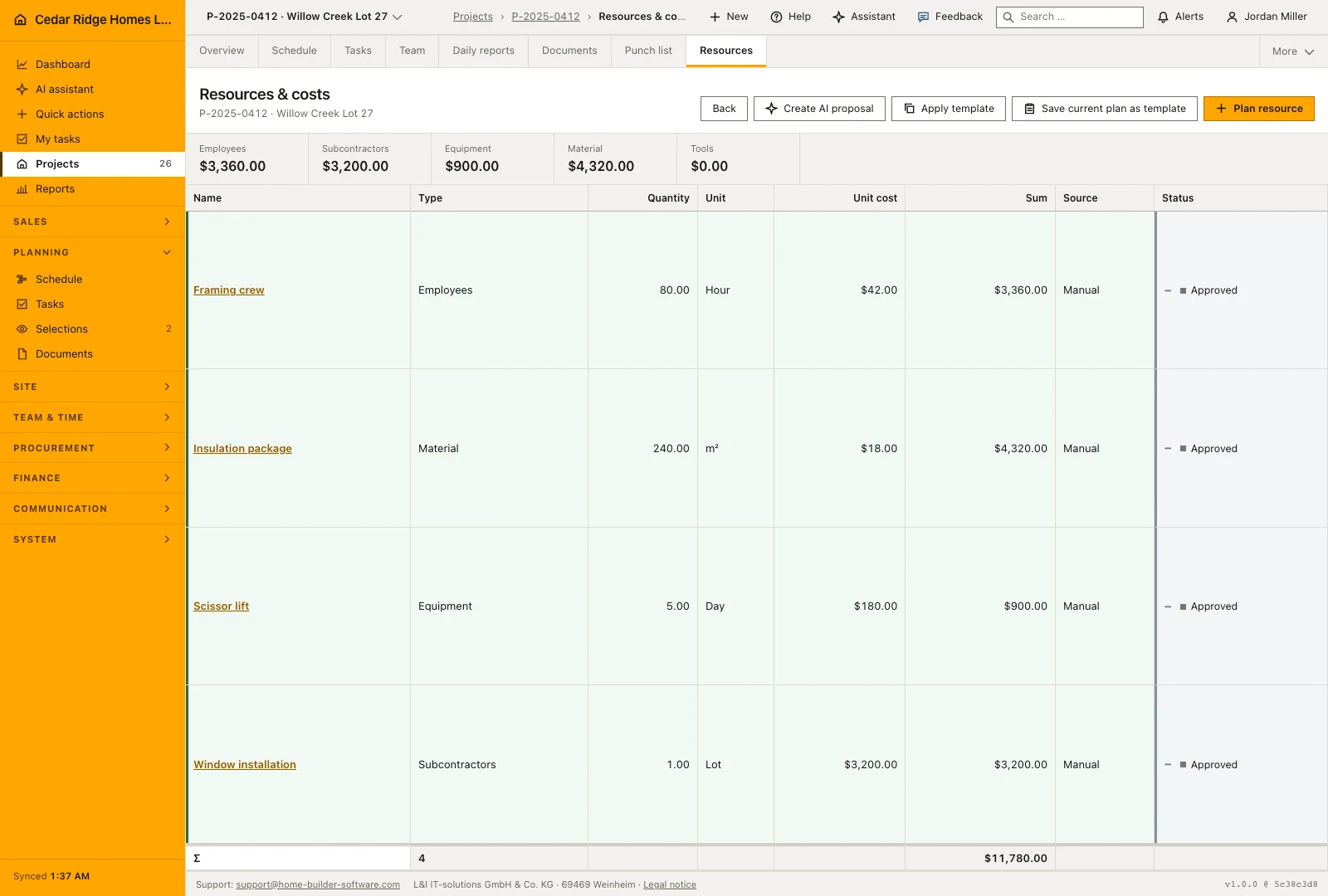
Plan resource opens a page of its own rather than a row you fill in place. Pick the resource type, then a name, a quantity, a unit of hour, day, piece, lot, square meter or cubic meter, a unit cost and, when they are known, a start and end date. The end may not fall before the start. The linked resource field is optional and points at an employee, a supplier or an equipment record.
Saving takes you to the detail view, which is where a line is sharpened. The table shows quantity, unit, unit cost and the line sum, plus the source of manual, template or AI proposal, and the approval status that colors the row. Beneath the table a total is drawn, and above it the figure band gives the planned cost for each resource type separately, which is the shape a cost group comparison wants.
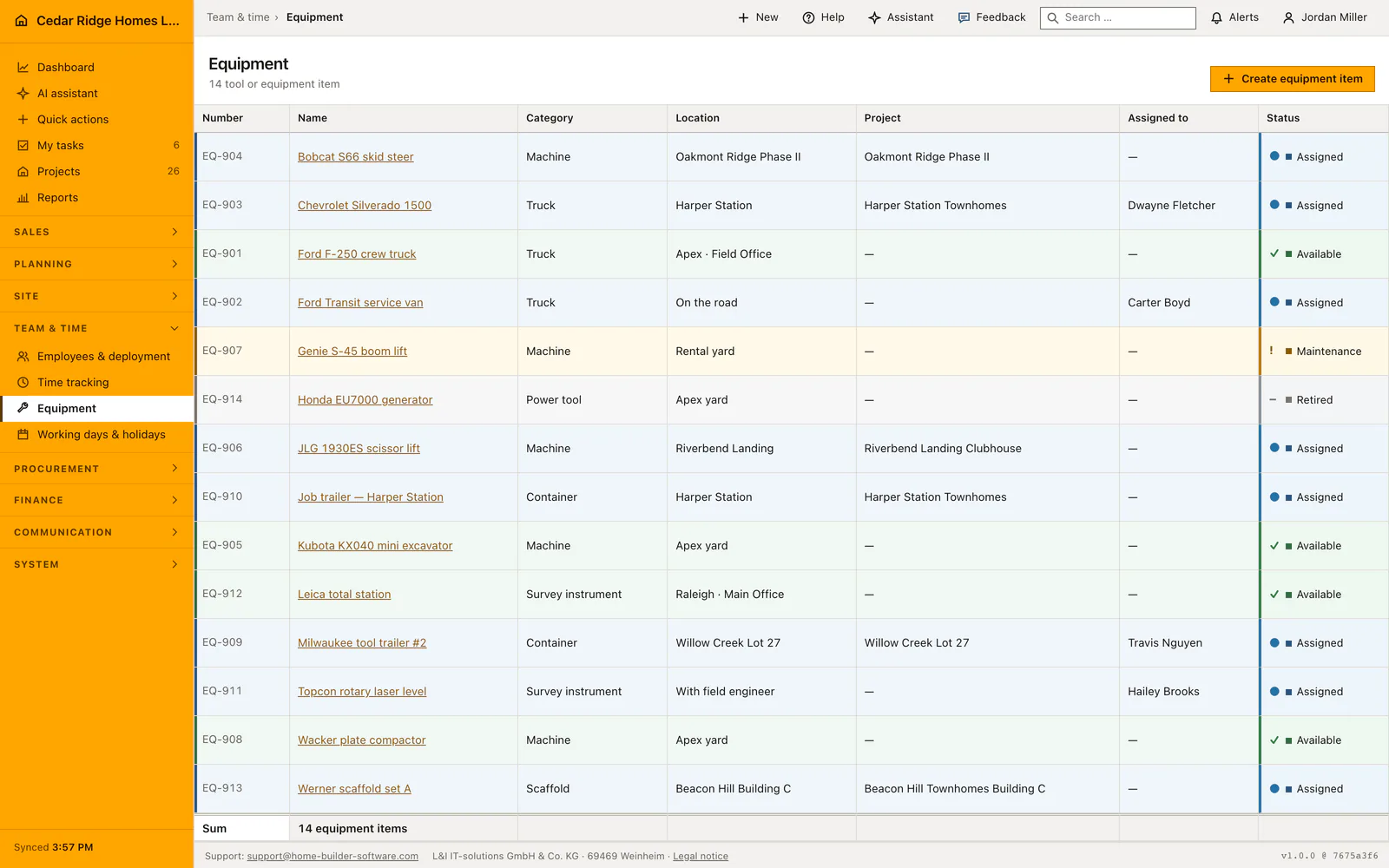
Approving, rejecting and re-reading pending lines
The daily work here is judgment rather than typing. A pending line is a proposal: somebody applied a template, ran the automatic planner, or wrote the line by hand and left it open. You read it against the real site situation, asking whether the quantity suits this house, whether the unit cost is still current and whether the deployment window matches the slot that trade has in the plan, and then approve or reject.
Approve and Reject are one press each and write the status straight away, with a message naming what happened. A rejected line is not deleted: it stays visible with its status, so the decision not to plan something reads as clearly as the decision to plan it. Corrections belong before the approval, because editing a line and approving it are separate actions and the second one is what everybody later relies on.
Approval status, audit events and who may plan a resource
Three approval statuses exist: approval pending, approved and rejected. A line written by a person takes whatever the form says, while a line arriving from a template or from the automatic planner always starts pending, and that rule is what keeps a suggestion out of a confirmed plan. Creating, updating, approving and rejecting each write an audit event carrying the project and the line, so the origin of a number stays readable months later.
Every write is checked twice. The route gate refuses a change from an account without projects.manage, and the controller then confirms that the project belongs to this company and the line to this project. A linked resource is verified against the table its type implies, an employee against the users, a subcontractor against the suppliers, equipment and tools against the equipment list, so a line cannot reference a record from another company.
Resource templates, Smart Planning and the budget comparison
Save current plan as template carries over only the approved lines of this job and stores them company-wide together with the project’s country profile and currency. Applying a template writes its lines onto another project as open proposals, without their original links, so the next house of the same type starts from experience rather than from an empty table. The template list names the extent of each one.
Create AI proposal builds one pending line from the summed estimated hours of the schedule, the project period and the hourly cost of the person running the job, and the message says outright that it waits for human approval. What the approved set is for shows in the budget of the project file by DIN 276 cost group: planned resource cost is the figure the office holds against the budget before money is committed.
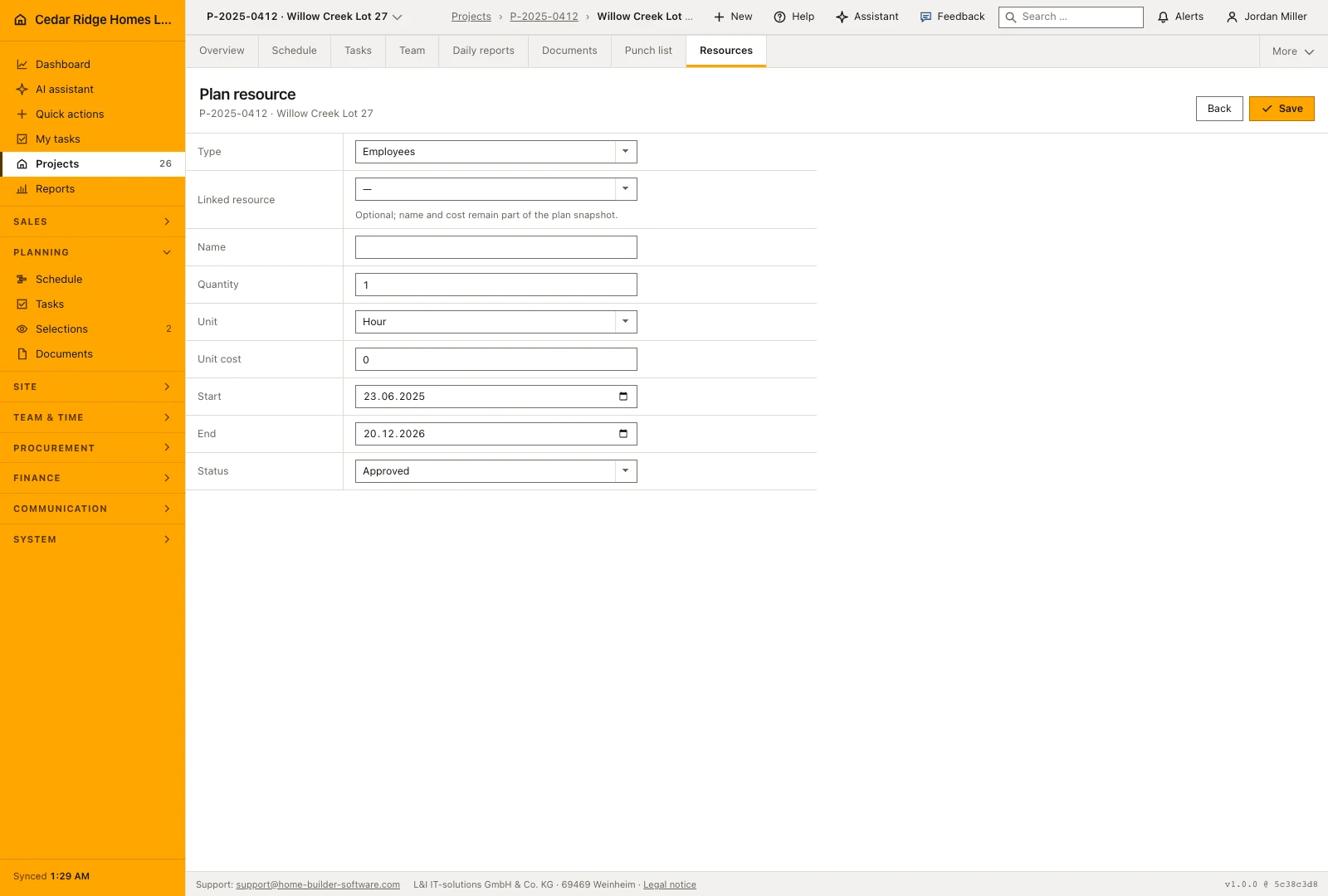
Resource plan example: framing at Harper Station Townhomes
Before framing starts at Harper Station Townhomes, Dwayne Fletcher plans three lines in the Resources register of the project file. A framing crew of type employees gets 480 hours at a unit cost of $58, which the table sums to $27,840. The Kubota KX040 mini excavator goes in as equipment, linked to its record in the equipment list, for 15 days at $310, giving $4,650. A drywall package of type subcontractors stands at one lot for $24,300. All three lines were written by hand and saved directly as approved, so the figure band separates $27,840 for employees, $4,650 for equipment and $24,300 for subcontractors, $56,790 in total.
Create AI proposal then reads the schedule, finds 720 estimated hours across its activities, takes Dwayne’s stored hourly cost of $54 and the project period through 05/04/2027, and files one pending line of $38,880. He rejects it with a single press, because the manual crew line already carries those hours, and the rejected proposal stays readable as the decision it records. The approved $56,790 now reads against the DIN 276 budget of the project file before any money is committed, and Save current plan as template carries the three approved lines company-wide, together with the United States country profile and the dollar, for the next block of townhomes.
Project resource and cost planning: checks before saving
Lines applied from a template and lines built by the automatic proposal always arrive as approval pending, whatever their source project said.
The end of a deployment period may not fall before its start, and neither quantity nor unit cost may be negative.
A linked resource is verified against the table its type implies, so a line cannot reference a record from another company.
Saving the plan as a template carries over only the approved lines; pending and rejected ones stay on the job.
Creating, editing, approving and rejecting a line each write an audit event naming the project and the line.
Project resource and cost planning: common mistakes
Approving the automatic proposal without opening it. It takes the hourly cost of one person and the whole project period, which is a starting point for a discussion rather than a crew plan, and approval turns it into the plan.
Planning resources before the schedule carries estimated hours. The proposal then falls back to a single hour, so the line looks harmless and understates the cost of the trade it stands for.
Reading the register as a commitment. Resources are the planned demand; money is committed in purchasing and awards, and a line approved here neither orders material nor books a subcontractor.
The product page describes the same module from the business side, with the decisions it supports and the modules it connects to.
See the product pageFrequently asked questions
Do proposed resources immediately become approved plans?
No. Template and Smart Planning suggestions start as pending until a person approves or rejects them.
Which resource types can be planned?
The project file supports labor, subcontractors, equipment, tools and material.
Configuring this part for your own company?
Describe the sequence you follow today and the result you need at the end of it. We can walk through the settings that produce it.