
Construction workforce planning: setup and daily use
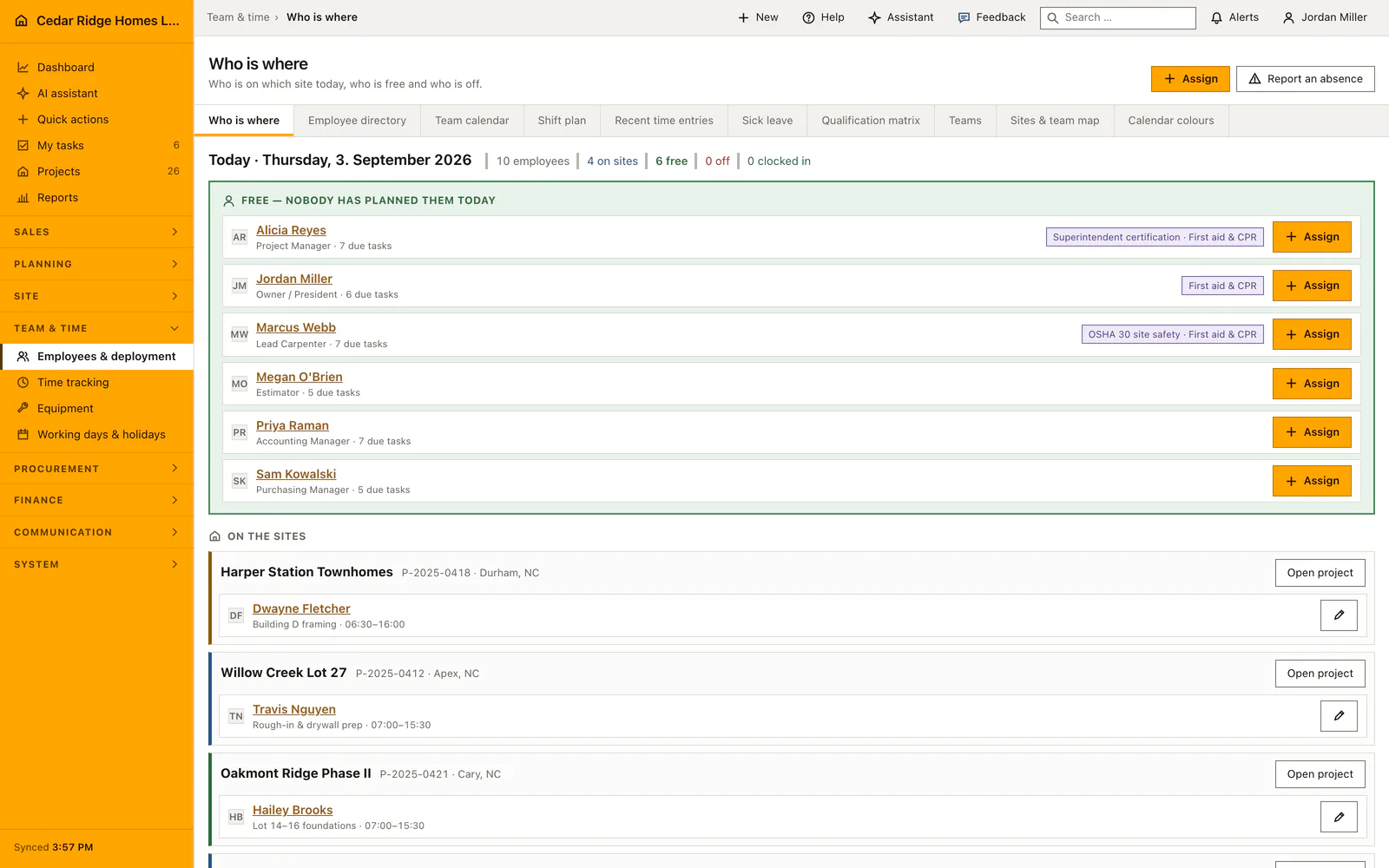
The module opens at /workforce on the crew overview called Who is where: who stands on which site today, who is free and who is off. Directory, month calendar, shift plan, hours, absences, qualification matrix, crews and calendar colors are separate pages of the same module. Reading asks for workforce.view, planning for workforce.manage, other people's hours and their approval for workforce.payroll.
Setting up crews, qualifications and calendar colors
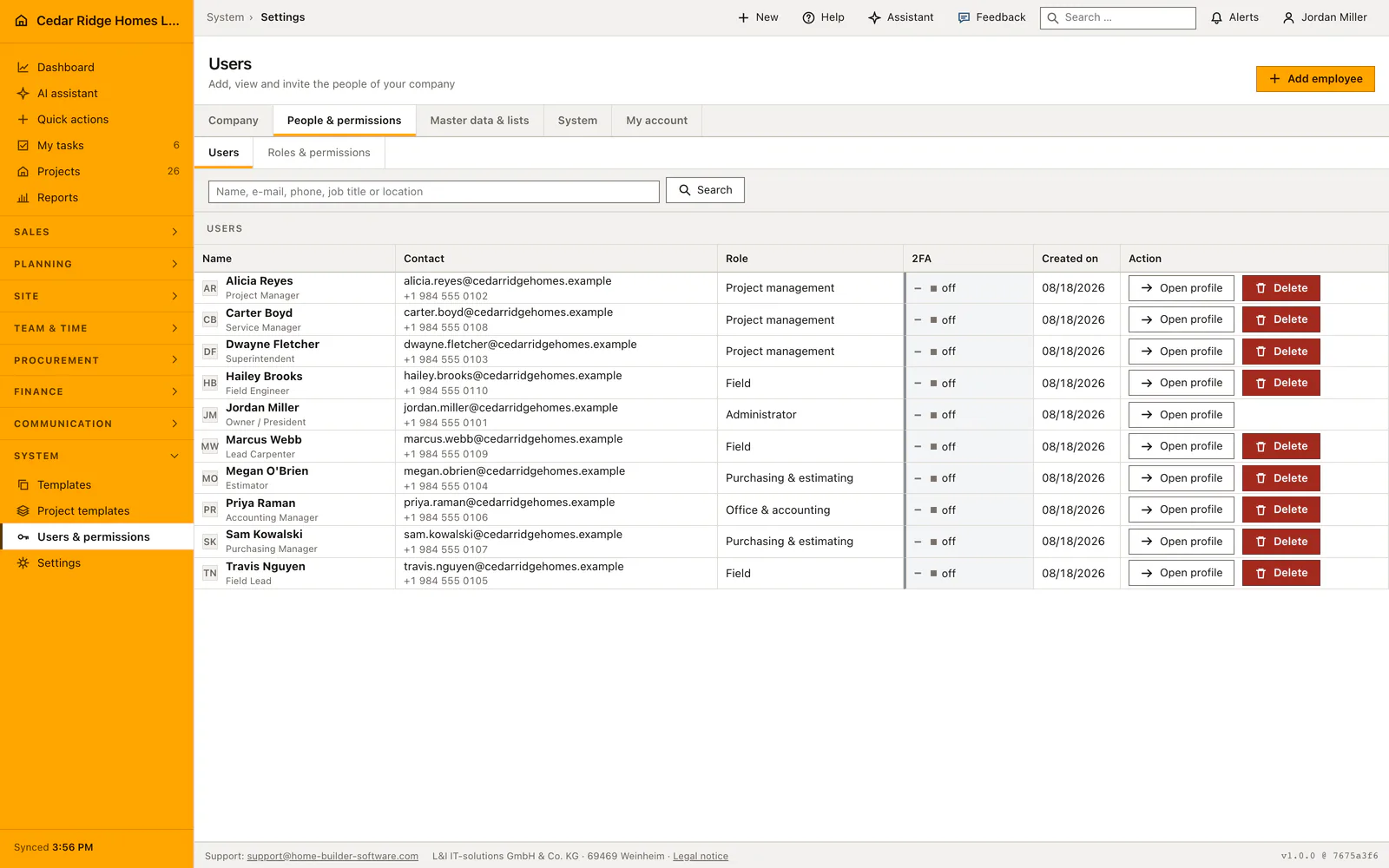
Contact details are not maintained inside this module. They sit on the user record, which each person edits under Settings and Profile and which an administrator edits for everybody under Settings and Users. Directory, chat contact and the pages of this module read the same record, so a mobile number is typed once. The hourly cost rate on that record is the value the hours approval proposes later.
Crews are created under Teams with a name of at most 120 characters, an optional hex color and a member list to tick. A crew stays changeable, and dissolving one keeps the members and the planned shifts, which merely lose their crew. The qualification matrix seeds a base catalog on first use covering first aid, site safety, electrical work, crane operation and site management. A certificate is then granted per person from a cell of that matrix, with a level from one to five and an expiry that may stay empty. Calendar colors are rules for company, crew, project or person, and the most specific one wins.
Writing a shift and assigning from the crew overview
The full shift form asks for a title, a project, a crew, a start, an end, a color and the qualifications the work demands. The employee field may deliberately stay empty, which is what makes the shift visible to automatic staffing. The end has to lie after the start, and both moments are read as the company's local time rather than as a raw string value.
For an ordinary Tuesday the overview offers the shorter path. Assign opens a dialog that already carries the person and the day of the cell you clicked and asks only for the site, the start and the end. Leaving the title empty gives the shift the name of the site, or No site for workshop, yard and training. An end before the start is read as a night shift and runs into the following day. Before writing, the dialog shows what that person already has on the day and warns when they are reported absent, without blocking the assignment.
Working the crew overview and the month calendar
The overview counts the day out: how many employees the company has, how many stand on sites, how many are free, how many are off and how many are currently clocked in. Below it follow the free people, the sites with their staffing, a block for anyone who booked hours without being assigned, and the week around today as a grid. A section headed Not staffed names why a day stayed open.
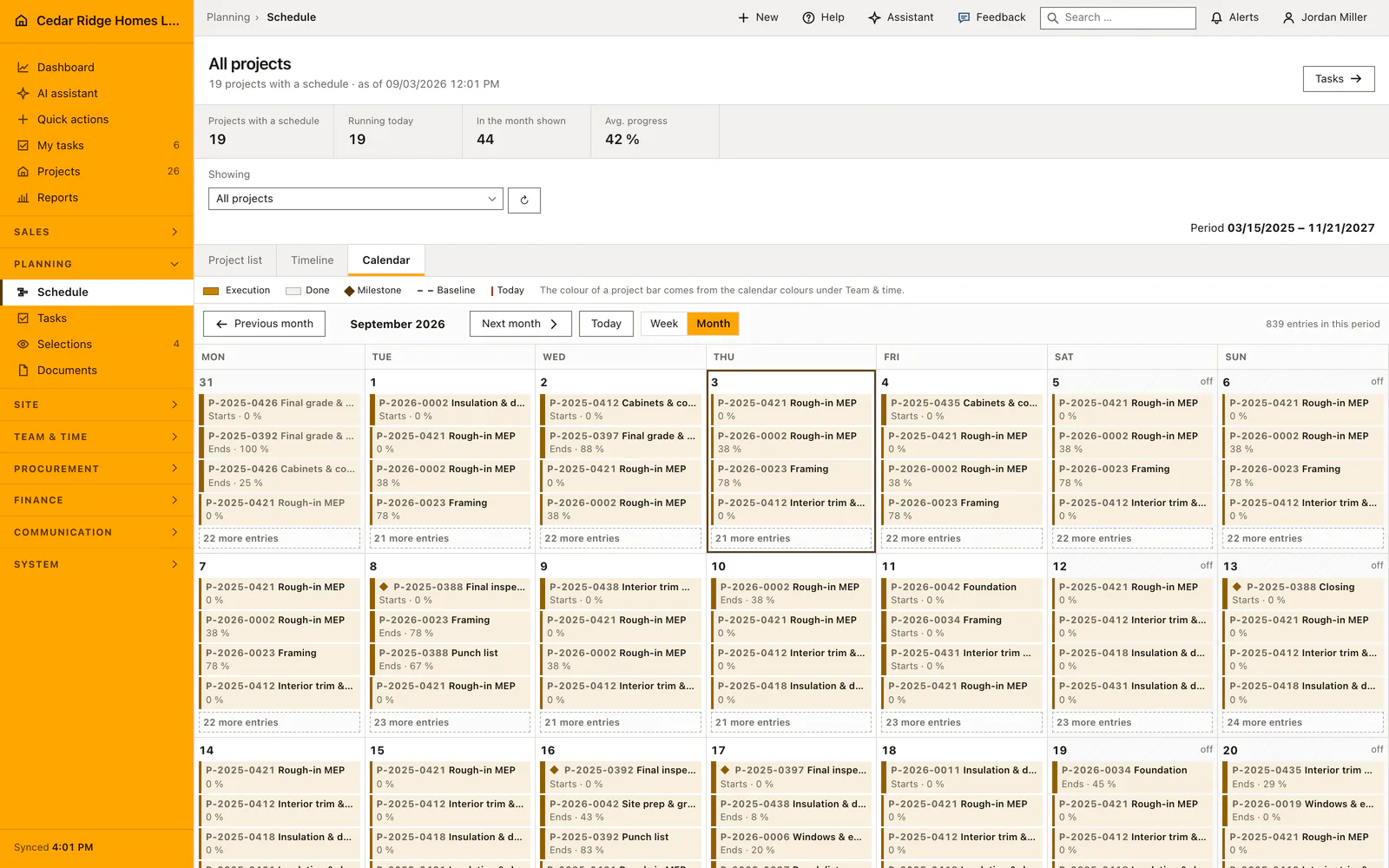
That reason is concrete rather than decorative: nobody is free that day, or nobody among the free people holds the required certificates, in which case the names of those who do hold them stand beside it. The month calendar shows shifts and absences per day, each shift in the color its rule determines. Whoever manages the crews drags a shift onto another day; duration and person are kept.
A dragged or hand-edited shift loses the marker saying it was staffed automatically, and the stored explanation goes with it. A human decision therefore never hides behind a machine one. Automatic staffing itself runs in two requests: the preview writes nothing and lists every open shift either with a candidate or with the sentence saying that no conflict-free person holds all the qualifications.
The permissions workforce.view, workforce.manage and workforce.payroll
workforce.view opens the module, the directory, the calendar and the individual pages. workforce.manage is demanded for crews, qualifications, shifts, the quick assignment, calendar colors, automatic staffing and for any intervention in another person's hours or absences. workforce.payroll carries the approval of hours and the payroll export and deliberately does not belong to manage: whoever plans crews has no cost rates to set.
Personal records are filtered on the server and not hidden in the template. Without manage or payroll the hours list and the absence list show the rows of the signed-in account only. The crew overview goes one step further: whoever may not read the absence list learns that a colleague is unavailable, never whether the reason is illness or holiday. The plan stays correct while the reason stays private.
Applying a staffing proposal records how many shifts were filled and how many were skipped, and every shift the run touched keeps the sentence explaining the choice. Changes to crews, qualifications and shifts go into the audit trail as well. A person's page shows hours and absences to that person and to management only; a colleague sees the contact card, the certificates, the week and the open tasks.
How shifts, absences and hours act on other modules
A shift usually carries a project, and that project connects the plan to the site: the project team page and the crew overview both draw on it, and the number of people clocked in comes from the time bookings of the same day. Report an absence asks for the kind before it asks for the dates, Sick or Holiday, and stores that answer in the kind field of the record. Both kinds act on planning as a hard exclusion and on the overview as a statement of availability, without the reason traveling any further.
Automatic staffing invents no availability. If the shift names a crew, the pool is limited to its members; an overlapping shift or a reported absence removes a person entirely, whether it was entered as sick or as holiday, because that check reads the dates and never the kind; every required qualification has to be still valid on the day the shift starts. Among those who remain, the minutes already planned in that week lower the score, so the work spreads instead of piling up.
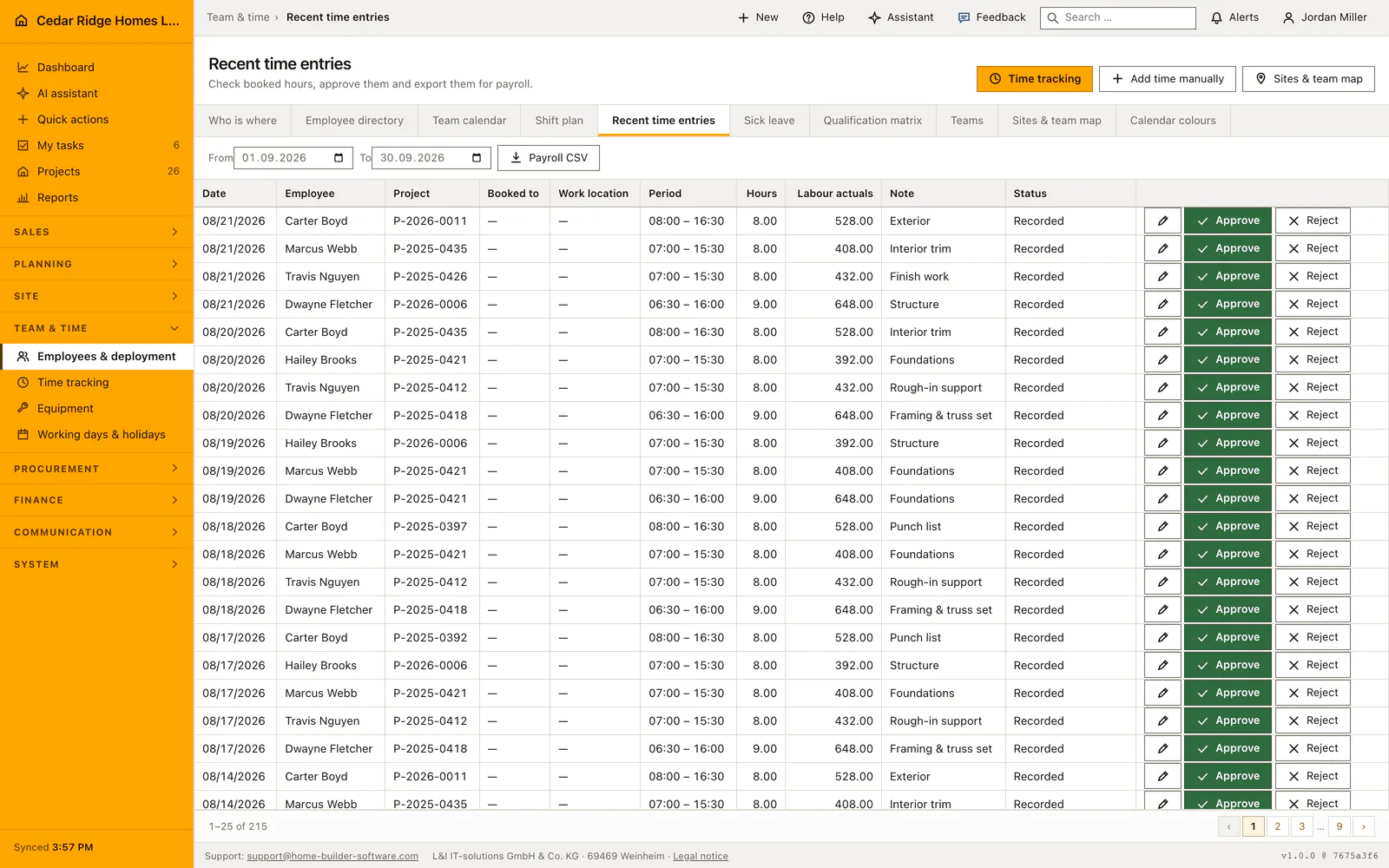
Hours on the project of a shift come from time tracking and are approved there, not here. Open tasks appear on the person's page, and their handover notices go to everybody holding workforce.manage, the same permission that plans the shifts. Site coordinates for the map belong to the project and are set with the same permission. Switching the location policy off deletes every stored position of the company.
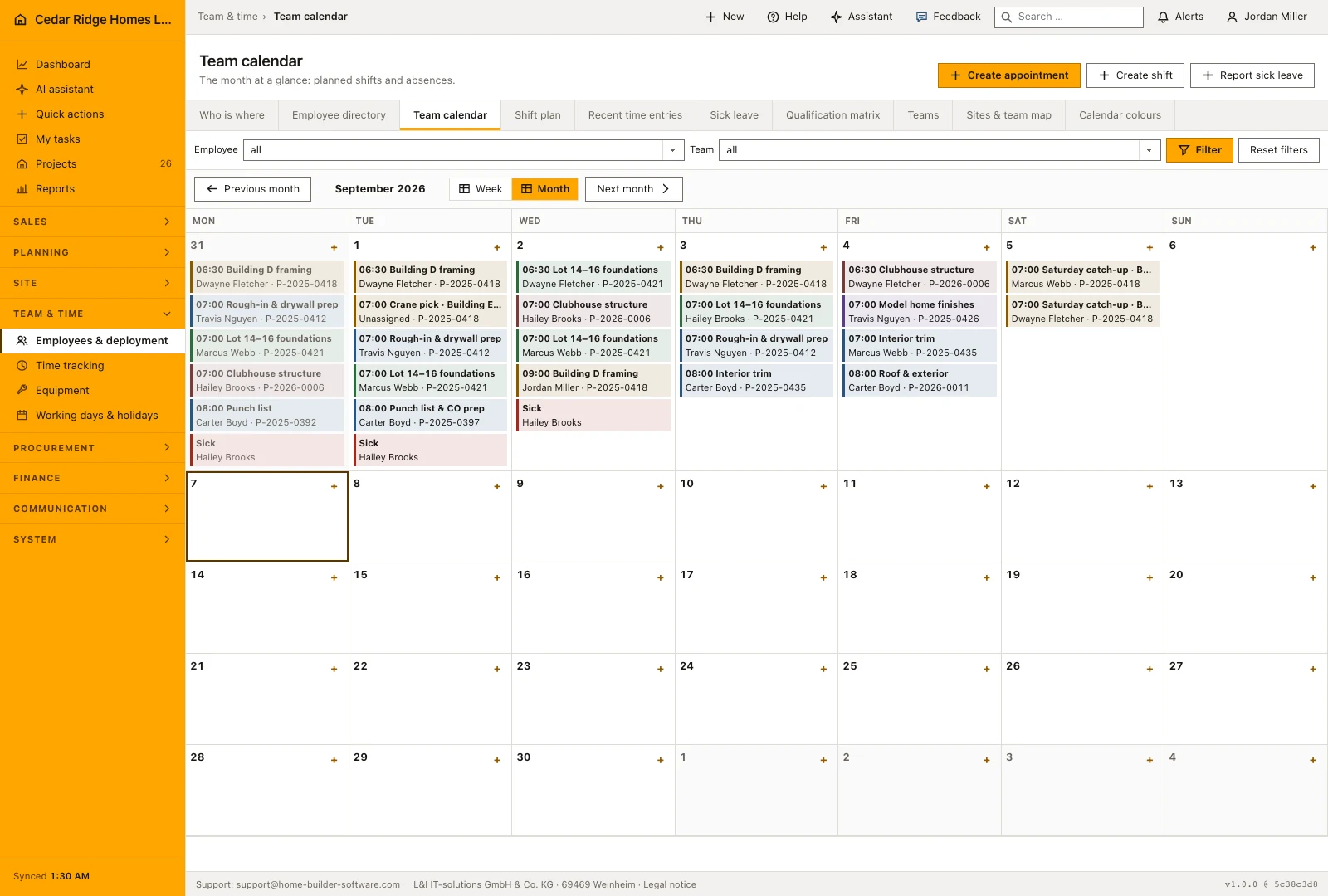
An example day of shift planning and automatic staffing
On Wednesday, August 19, the crew overview of Cedar Ridge Homes LLC counts 10 employees, 4 of them on sites and 6 free; Dwayne Fletcher and Marcus Webb stand on the Oakmont Ridge Phase II foundations, Hailey Brooks on the Riverbend Landing clubhouse structure. For Thursday's concrete pour at Riverbend Landing the planner writes a shift from 06:30 to 15:00, leaves the employee field empty on purpose and demands the qualification as crane and boom lift operator. That empty field is what opens the shift to automatic staffing, and the demanded certificate has to be valid on the day the pour begins.
The preview writes nothing and reasons out loud: Alicia Reyes carries first aid and a superintendent certification but no crane card, Marcus Webb falls out because Thursday already holds his Oakmont Ridge shift, and the candidate left is Travis Nguyen, whose crane and boom lift operator certificate runs until March 2027. Applying the proposal records one shift filled and none skipped, and 510 planned minutes land in Nguyen's week. A second pour shift on the same Thursday stays under Not staffed, with the stated reason that nobody free holds the certificate and with Nguyen named beside it as its only holder.
Construction workforce planning: checks before saving
Automatic staffing touches only shifts without a person that start today or later; a shift staffed by hand in the meantime is skipped and counted.
A required qualification has to be still valid on the shift's start date, otherwise its holder is no candidate for that shift.
Without workforce.manage or workforce.payroll the server restricts the hours and absence lists to the rows of the signed-in account.
Dragging a shift onto another day and every hand edit remove the automatic-staffing marker together with its stored explanation.
Dissolving a crew keeps its members and its planned shifts; the shifts only lose their reference to the crew.
Construction workforce planning: common mistakes
Creating a second crew of the same name to add one more man leaves both of them in every pick list afterwards. Open the existing crew instead and tick the new member on.
A certificate without a date under Valid until never expires and keeps making its holder a candidate. Enter the expiry everywhere one exists.
Applying the staffing proposal without looking at the preview accepts every line at once. It is precisely the shifts that cannot be filled, with their reason, that are worth reading there.
The product page describes the same module from the business side, with the decisions it supports and the modules it connects to.
See the product pageFrequently asked questions
How does automatic shift assignment choose an employee?
It checks team membership, valid required qualifications, sickness and overlaps, then considers current weekly load.
Is the reason for an automatic assignment visible?
Yes. The assignment explanation remains attached to the shift.
Configuring this part for your own company?
Describe the sequence you follow today and the result you need at the end of it. We can walk through the settings that produce it.