
Construction working calendar: setup and daily use
Working days and holidays is company master data at /working-calendar: one calendar for the whole firm, holding the working week, the daily hours, the timezone and every day that breaks the pattern. Anyone signed in may read it, because when the company works concerns everybody; changing it needs the right to manage projects and workflows. The schedule, the Gantt chart and the project template wizard all count with this single answer.
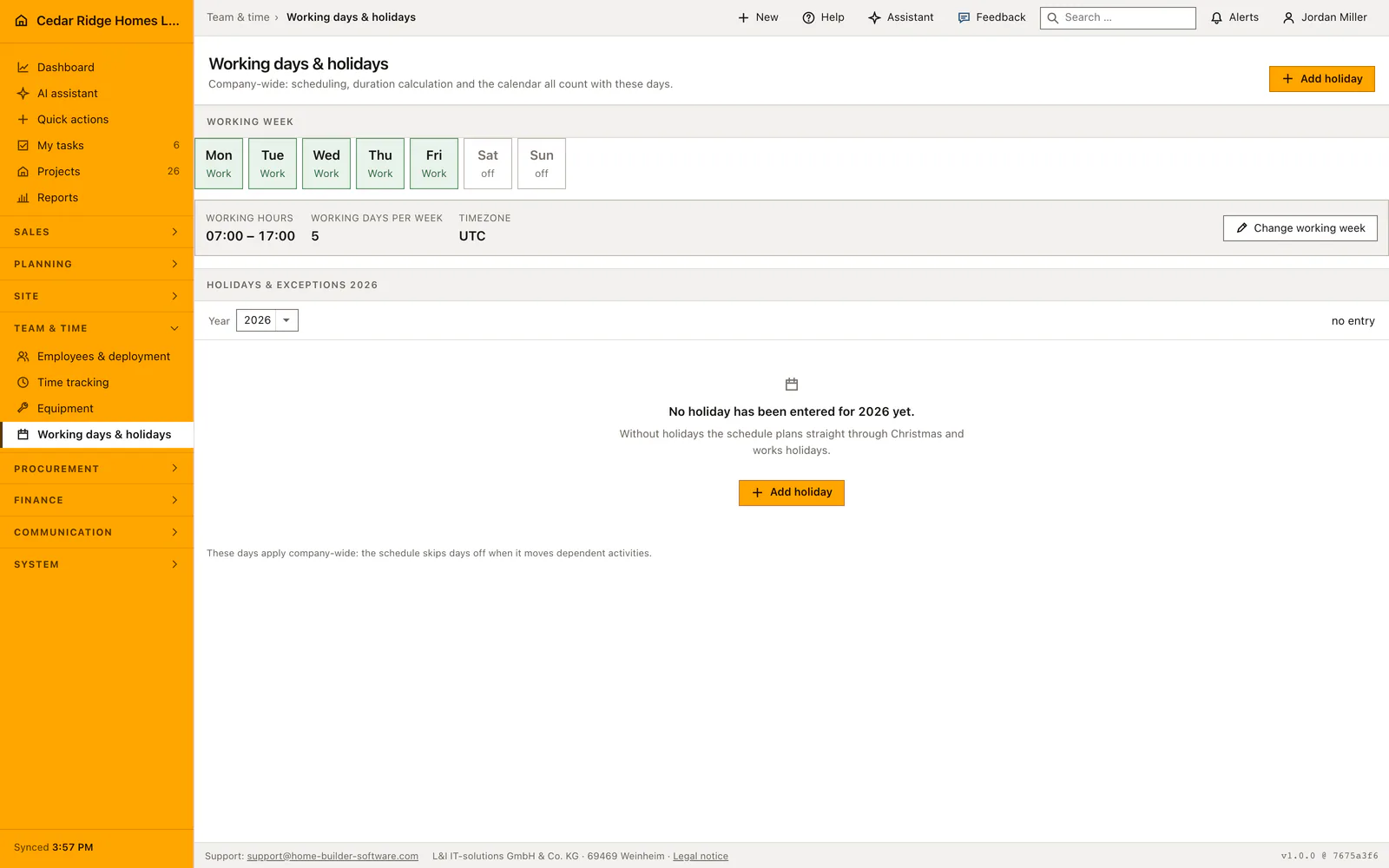
The one company calendar, its starting values and the year list
The page creates the calendar the first time somebody opens it, with Monday to Friday as working days, a day running from 07:00 to 17:00 and the timezone of the installation. There is exactly one default calendar per firm; nothing here hangs on a single project, and no project brings a calendar of its own. At the top stands the week itself, seven fields with the worked days filled in, so the answer reads without opening a form.
Below the week stand the three facts a plan depends on, working hours, working days per week and the timezone, next to the button that changes them. The list underneath shows one year at a time. The year selector offers the current year, the next one and every year that already carries an entry, so a firm that typed its 2027 shutdown in advance can find its way back to it.
Setting the working week, the daily hours and the timezone
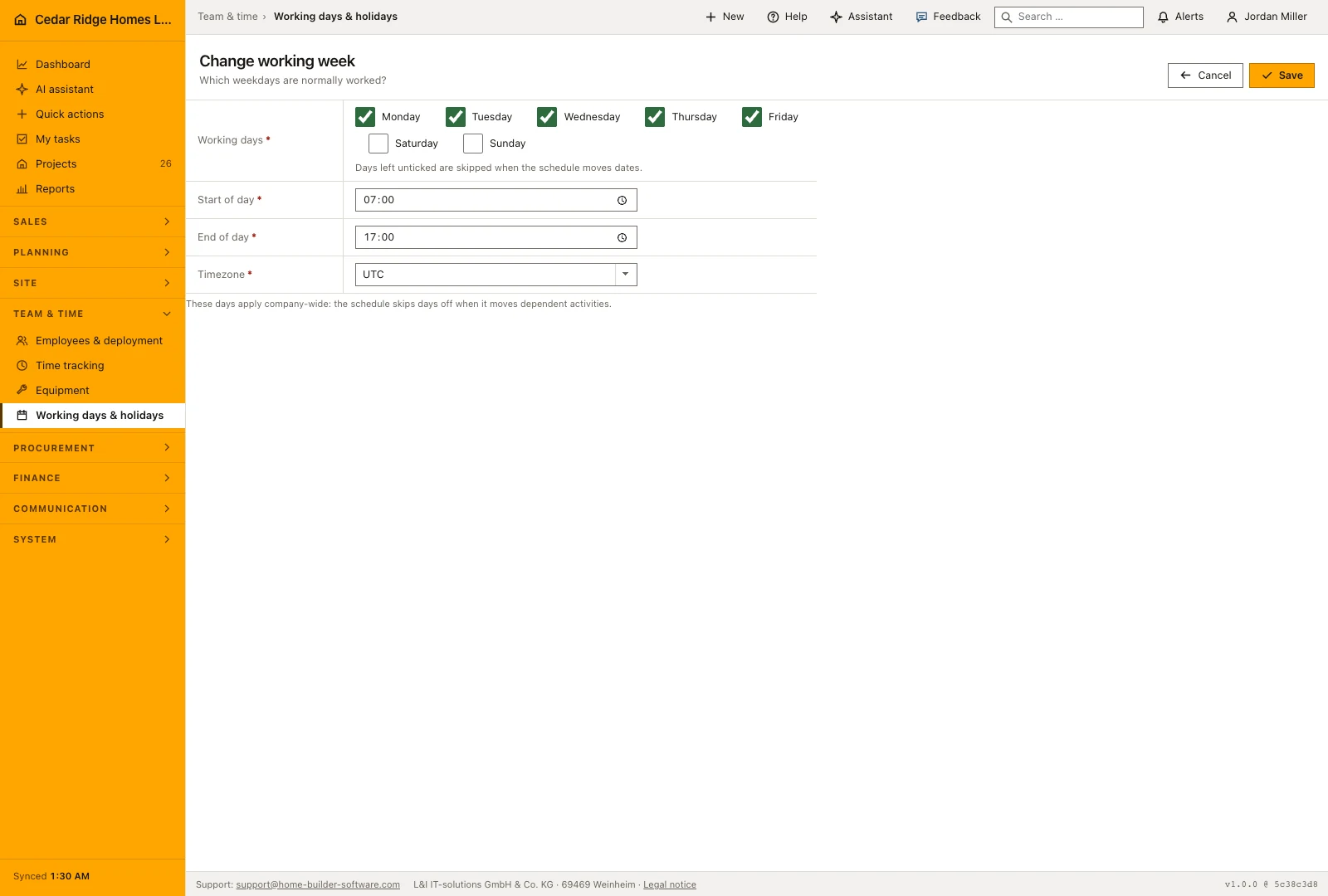
Change working week opens a form with one checkbox per weekday, Monday through Sunday. At least one day has to stay ticked; a week without any working day is rejected. Start of day and end of day are times, and the end must lie after the start. The timezone comes from the list the installation offers, extended by the value already stored, so an existing setting never disappears from the field.
Unticked days are exactly the days the schedule steps over when it moves a dependent activity, which is what the hint under the field says. Saving writes working-calendar.week.updated to the audit log together with the new set of days and returns to the overview. The daily hours are the planning frame for a working day; they clock nobody in, which is what time tracking is for.
Entering public holidays, works shutdowns and worked Saturdays
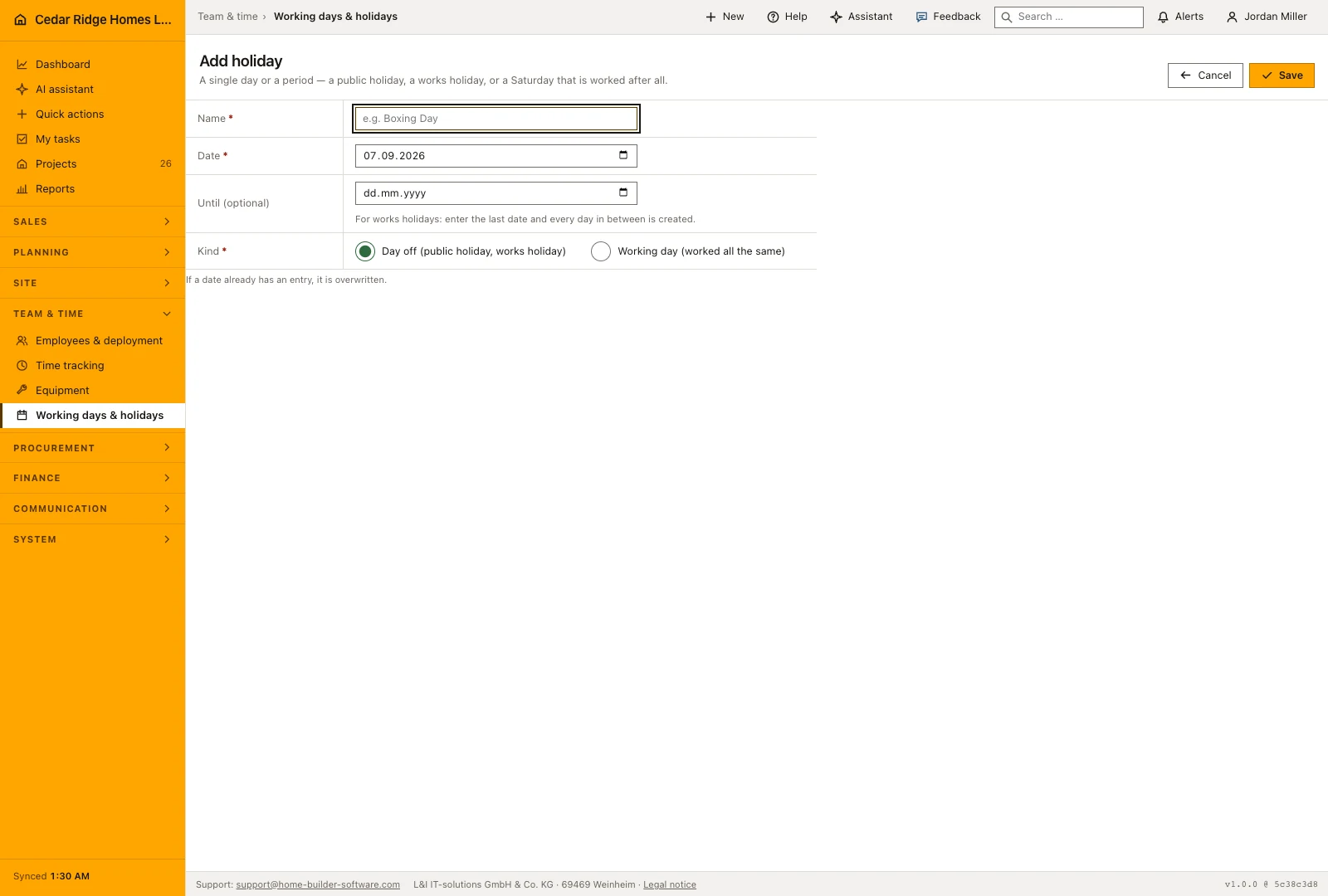
Add holiday asks for a name of up to 120 characters, a date, an optional end date and one of two kinds: a day off, which covers public holidays and works shutdowns, or a working day, which is the Saturday the crew turns up after all. With an end date, one record is written per day, and the form refuses a span of more than ninety days between the two dates; a range that just reaches that limit therefore writes ninety-one rows, because the first and the last day each get one. Beyond the limit the form asks you to split the entry rather than writing a quarter of a year.
The same date entered a second time overwrites the first, because the schedule needs one answer per day, and the form announces that before you save. A row disappears through the delete button beside it, after a confirmation that spells out the consequence: the day counts as an ordinary day again. Creating and deleting are logged separately, with the range and the kind on creation and the name on deletion.
Permissions on the working calendar and the log behind each change
No module permission is recorded for reading. Whoever can sign in sees the working week and the holiday list, and that is deliberate: when the company works is nothing confidential, and a site manager who cannot see it plans against it. Every write is mapped to the right that manages projects and workflows, the same right that may move a trade in the schedule, because what this page changes is the plan.
Without that right the page still opens, but the button that adds a day, the button that changes the week and the delete buttons are absent instead of refusing the click. The events working-calendar.week.updated, working-calendar.exception.created and working-calendar.exception.deleted reach the audit log with the acting account and the time, and any webhook the firm has set up. Who entered a public holiday and who removed it again stays traceable.
How the schedule, the Gantt chart and project templates count these days
Recalculating dependencies reads this calendar and steps over non-working days when the activities that follow are moved. Building a plan from a project template counts in working days as well and lets no phase begin on a closed day: the wizard pulls the start forward to the next working day, even when somebody typed a Sunday. Durations are measured the same way in both places, so wizard and engine never disagree about the handover date.
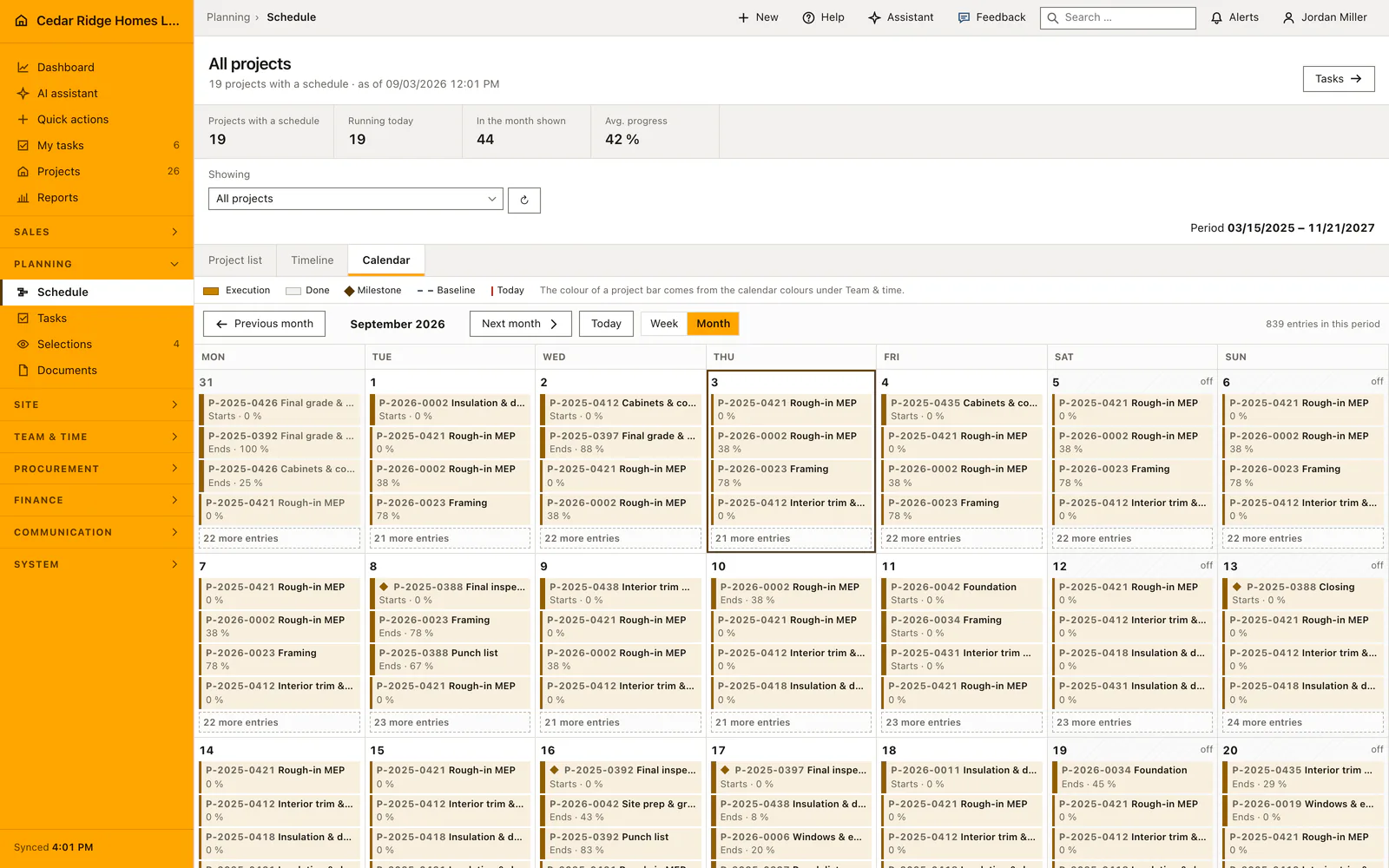
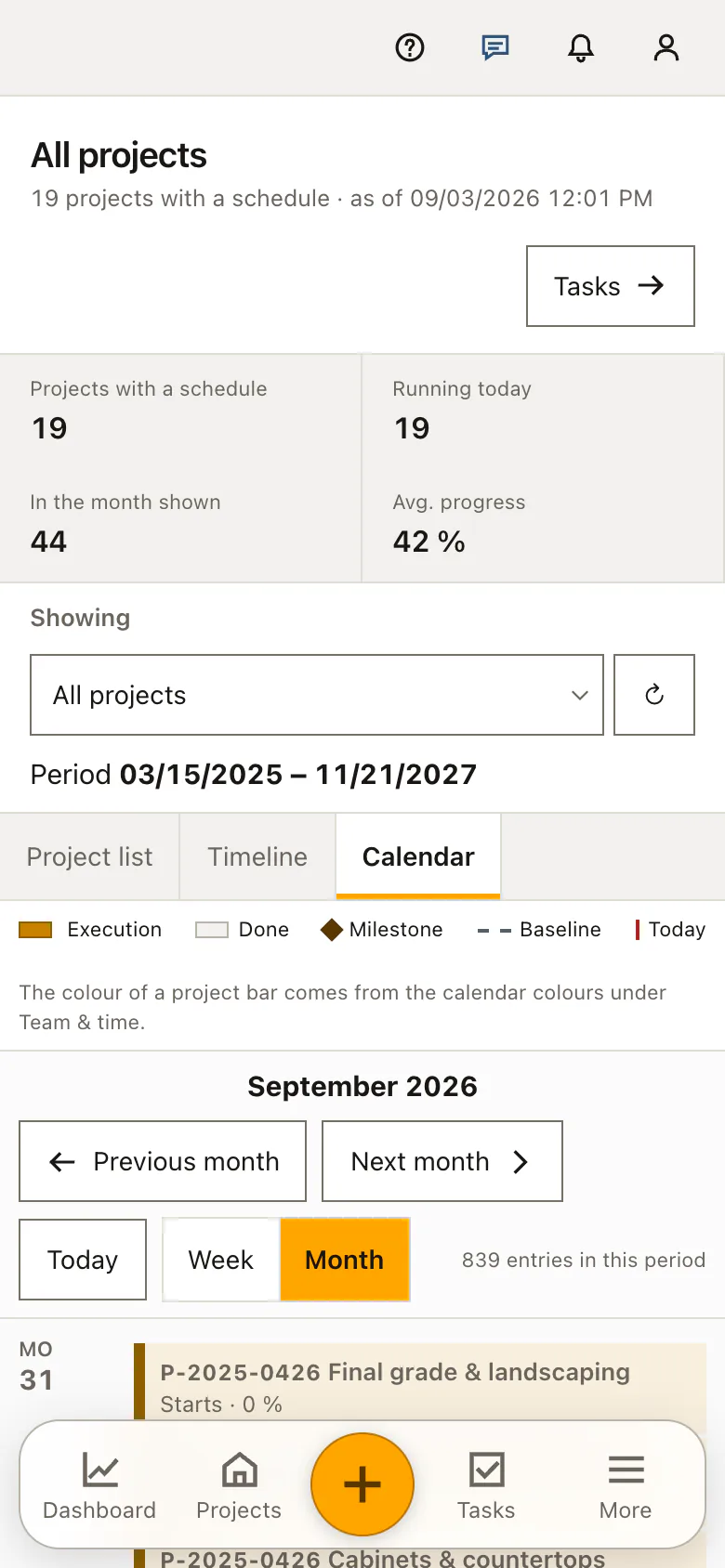
The month view of the schedule sets non-working days apart and prints the name of a named exception into the cell, so a day off carries a word and not only a shade. What the calendar does not govern is workforce planning: shift and assignment planning does not read it, and an entry made here neither creates nor removes a shift record.
Working calendar in action: winter shutdown, holidays and the schedule
At the end of August, Alicia Reyes prepares the winter on /working-calendar. The week stands at Monday to Friday, the day runs from 07:00 to 15:30, the timezone is America/New_York. She enters Labor Day on September 7, 2026 as a day off, then Thanksgiving break from November 26 to November 27, which writes two records, and Winter shutdown from December 24, 2026 to January 1, 2027, which writes nine — one per day, far inside the ninety-day span the form accepts. Because a rain week was lost in September, she also records Saturday, October 10 as a working day, the one weekend date the schedule is allowed to plan with.
The arithmetic becomes visible at Harper Station Townhomes. Drywall there finishes on Wednesday, December 23, and interior trim, planned at ten working days, depends on it. When Alicia has the dependencies recalculated, the engine steps over the shutdown, the weekends and New Year's Day, sets the start to Monday, January 4, 2027 and the finish to Friday, January 15. In the December month view the closed cells carry the words Winter shutdown rather than a bare shade, October 10 counts like any weekday, and workforce planning keeps every shift record it had — this calendar steers the schedule and nothing beyond it.
Construction working calendar: checks before saving
The working week needs at least one ticked day, and the end of day has to lie after the start of day; anything else the form refuses to accept.
A date range writes one record per day, and the limit is measured as the span between the two dates: more than ninety days apart is rejected with the request to split the entry.
The same date entered twice replaces the existing entry instead of adding a second one, because exactly one row exists per day.
Reading is open to every signed-in account, while entering, changing and deleting all require the right to manage projects and workflows.
Each change writes its own audit event, carrying the set of days on a week change and the name of the day on a deletion.
Construction working calendar: common mistakes
A works shutdown typed as fourteen single days is the entry nobody finishes. Use the end date: one named range writes every day in between and stays deletable row by row.
Unticking a weekday does not move the plans that already exist. Have the dependencies of the affected projects recalculated afterwards, otherwise activities keep their dates across the newly closed days.
The calendar governs the schedule, not the shift plan. A public holiday entered here removes no assignment in workforce planning, where keeping absences current stays a separate job.
The product page describes the same module from the business side, with the decisions it supports and the modules it connects to.
See the product pageFrequently asked questions
Can a company shutdown be entered as a date range?
Yes. A named exception can cover a range of up to 90 days.
Does a calendar change affect project scheduling?
Yes. The schedule engine uses the company calendar for recalculation and template planning.
Configuring this part for your own company?
Describe the sequence you follow today and the result you need at the end of it. We can walk through the settings that produce it.