
Construction document management: setup and daily use
Documents is the project filing cabinet: a folder tree on the left, the files of the open folder on the right, one row per file with name, project, type, revision, size and who uploaded it when. L&I IT-solutions sets the storage backend up before the first upload; then upload through the form or by dropping files on the page. A name that already exists in a project raises the revision and marks the previous sheet superseded.
Storage backend and folder scheme before the first upload
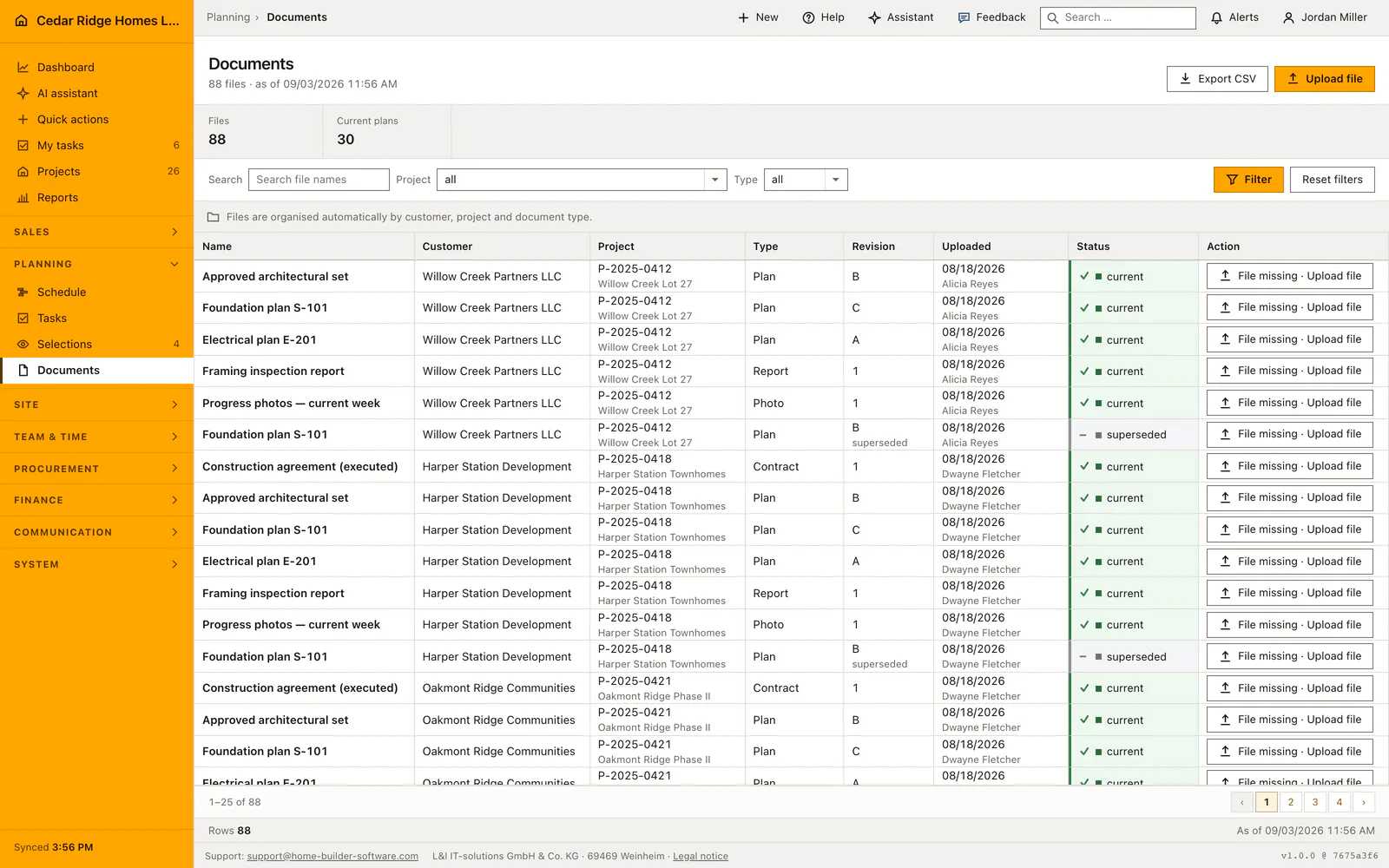
Under Settings and Storage the company reads where the bytes go: platform storage, an S3 bucket or an SFTP target, set up by L&I IT-solutions through its admin menu against the company license; a different target is requested from support, never typed in here. The choice is activated only after a write, read and delete check has succeeded, and the page names the active backend, the space in use, the last check and its response time. Nothing is served from a public address; the list holds metadata and the files sit behind permission-checked routes.
The filing scheme belongs to the company. Every new company starts from the same structure, the project phases as containers with the document kinds inside them plus an inbox, and files live only in the leaves. A folder is renamed without moving a single file, because the path stored on the document stays a fixed English slug while the tree shows the translated or typed name. Deleting a folder moves its documents into the inbox and reports how many.
Uploading a file and letting revision B replace revision A
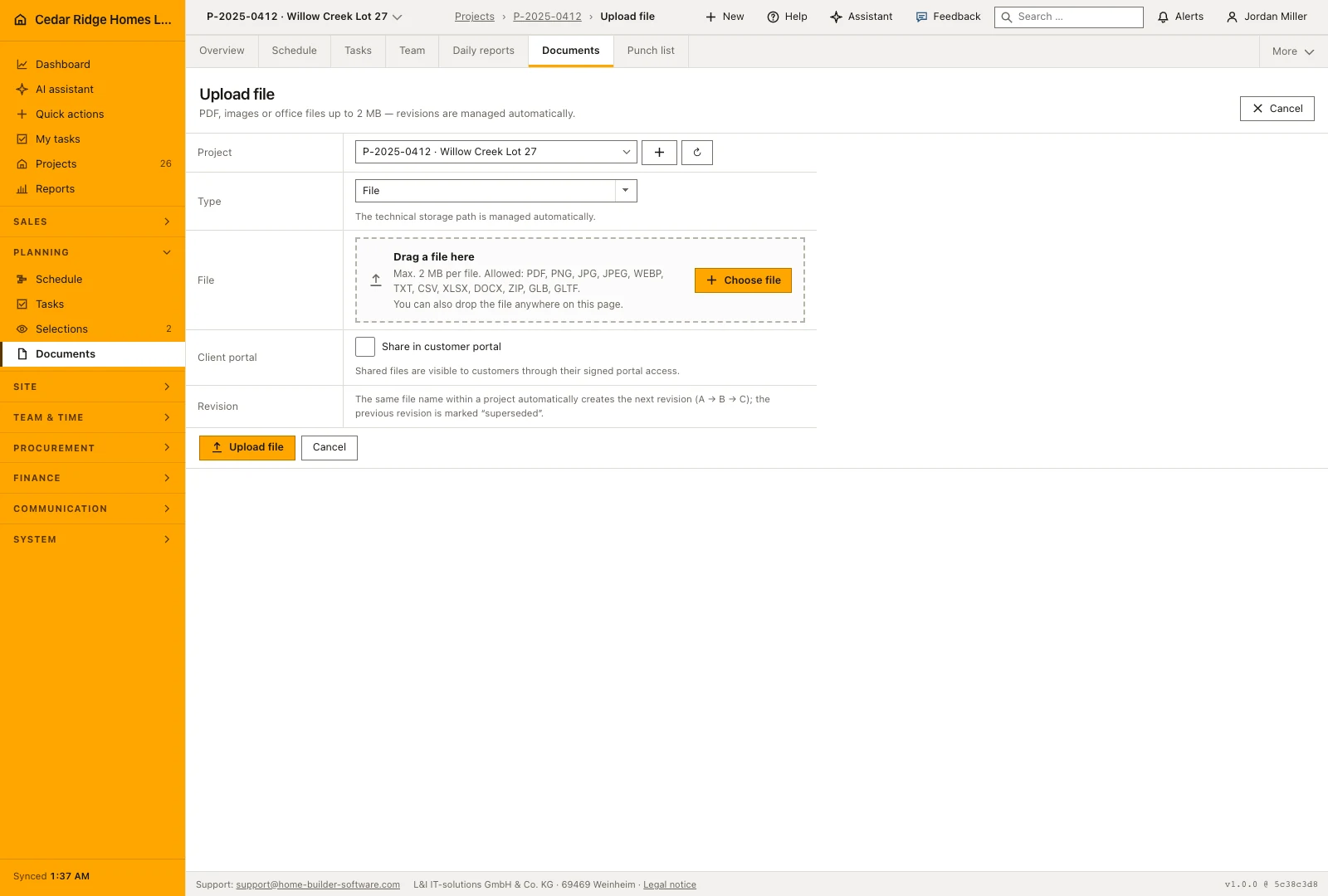
Upload file asks for the project, the folder and the file itself. The type is no longer asked: the folder decides it, and in the inbox the file extension does. Accepted are PDF, images as PNG, JPG or WEBP, office files such as TXT, CSV, XLSX and DOCX, ZIP archives and glTF models, up to 20 MB. The limit on screen is the smallest of the application rule, upload_max_filesize and post_max_size.
The display name is the original file name without its extension. The first upload of a name in a project starts at revision A; the same name again produces the next letter and flips every earlier sheet to superseded, inside a transaction that stops two parallel uploads from both claiming current. Dropping files works on the whole page, which files them in the open folder, or straight onto a folder row. A photo leads on to the inspection screen.
Finding the current plan with search, folder and type filters
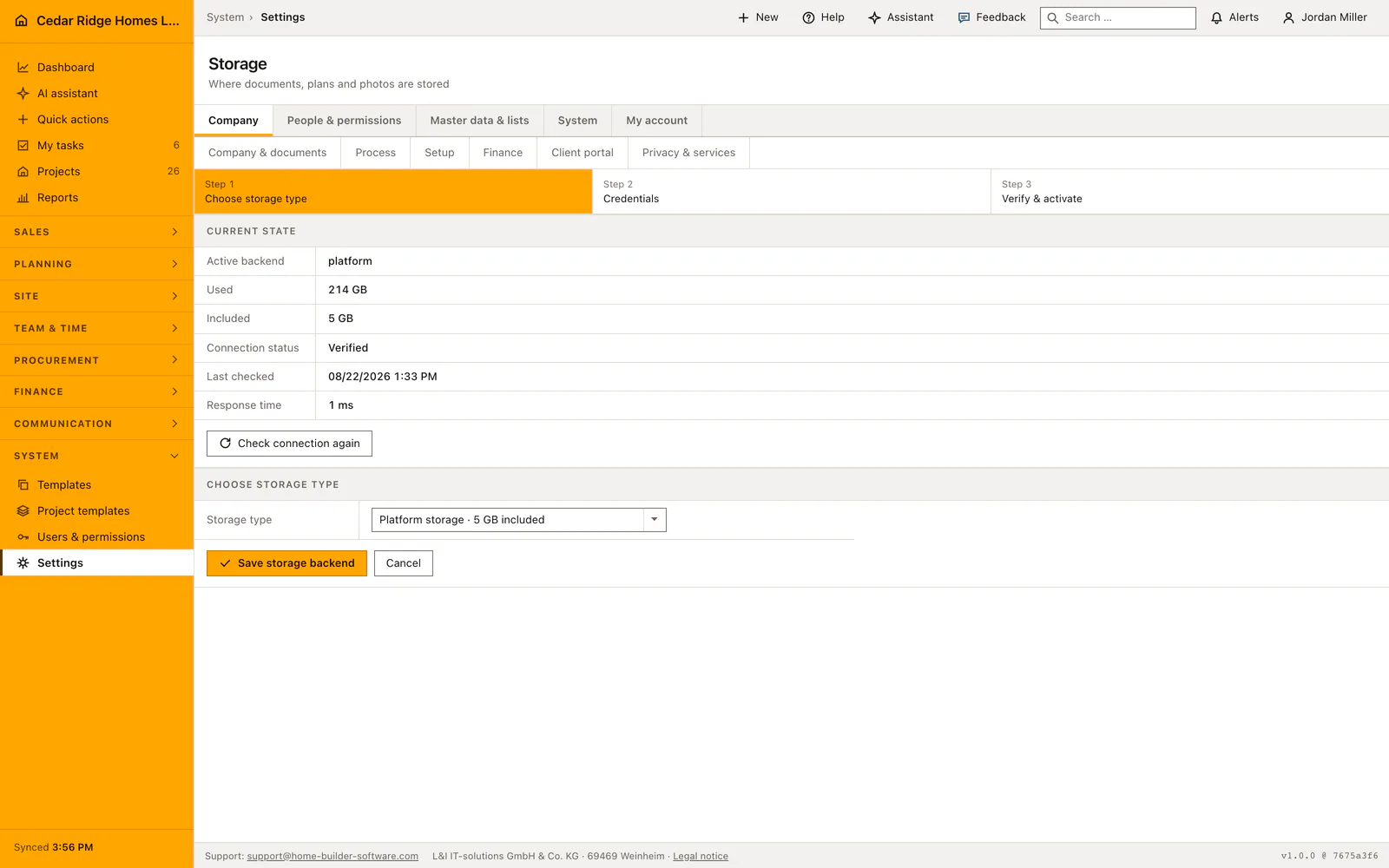
The filter bar starts with free text, matching the file name and the folder, including the translated folder label and the older folder names. The word you read on screen therefore finds what the column stores as a slug. Project, folder and type narrow further, the folder sits in the address so a folder is a link you can send, and the newest files stand at the top.
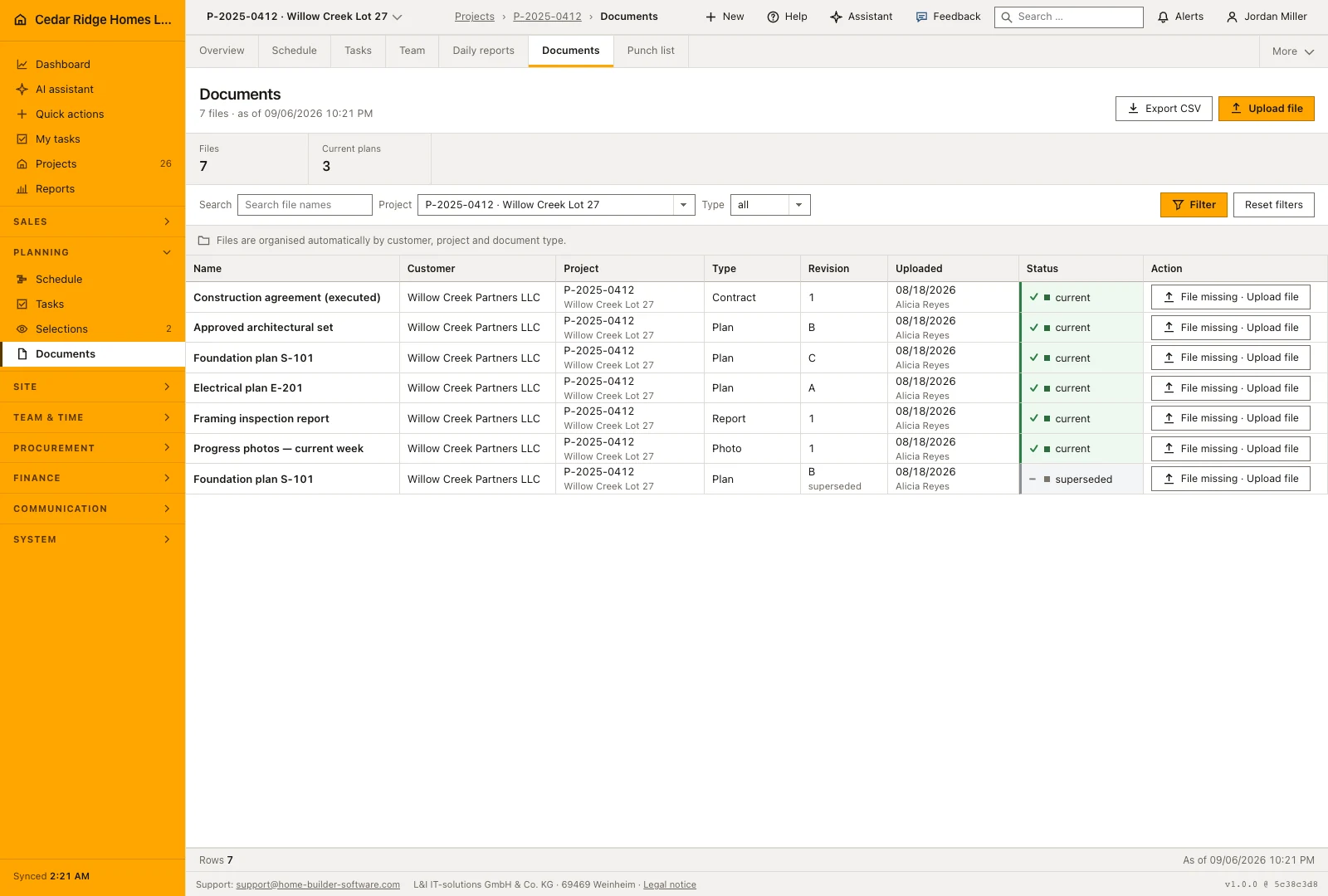
The revision column carries the letter, and the status column says current or superseded. Only current belongs on site; superseded stays as history and keeps it provable what was built to. The figure band counts files, current plans and total storage for exactly the filtered rows, while the status bar names the company-wide platform storage regardless of the filter. An empty folder says so and points at the drop zone.
Site write, project view and what the download route checks
Opening the list needs projects.view. Uploading needs site.write, the right that lets a field role file daily reports, defects, RFIs and documents without touching sales master data. Starting a photo inspection and adding a finding by hand are also site.write, while accepting or rejecting an inspection needs projects.manage. A document carries no company column of its own: the project it belongs to decides that, and the upload validates the target project against it.
Every download runs through a route that checks project and company, opens a private stream and hands the browser the original file name and nothing else. Preview does the same for images, inline. The document viewer can be switched off entirely in the privacy settings, and while it is on, rendering happens locally in the browser rather than through a public file address. Share in customer portal is decided per file and is off by default.
Photo inspection, project registers and the customer portal
Inspect photo opens on a photo row. You describe what should be checked in visible terms, joints or damage or sealing or safety, and may attach checkpoints and a schedule item the inspection serves as evidence for. Findings come back as numbered boxes colored by severity over the protected image, with coordinates in percent so they stay right on a phone. Without a connected image model a manual inspection is created instead of an invented result.
Model findings start at review pending, and a person accepts or rejects them; a company that switches the bypass on has them accepted automatically, while the audit trail still records the model use, the findings and the mode. Documents is also a register inside the project file, so the same tree filtered to one job sits beside the schedule and the tasks. Files a buyer uploads through the portal arrive in the inbox.
Document example: roof framing plan S-301 from revision A to C
On 06/12/2026 Alicia Reyes drops the file Roof framing plan S-301.pdf onto the Plans folder of the Construction phase for Willow Creek Lot 27. The folder decides the type Plan, the display name loses only its extension, and the sheet starts at revision A with 1.6 MB. Three weeks later the truss manufacturer moves two girder trusses; the corrected file arrives under exactly the same name, becomes revision B at 1.8 MB and flips A to superseded inside the same transaction. On 08/14/2026 a third issue lands as revision C at 1.9 MB, so one name now holds three sheets of which precisely one reads current.
Out on the site Travis Nguyen types S-301 into the free-text search, narrows to the type Plan and gets revision C at the top; the two superseded sheets stay listed beneath it and later prove which truss layout was set from which issue. His download runs through the permission-checked route, is verified against project and company, and hands the phone the original name Roof framing plan S-301.pdf. The figure band recounts at every upload: the three issues raised the file count by three, the current plans by exactly one, and the storage shown for this filter by 5.3 MB, the sum of all three sheets.
Construction document management: checks before saving
Uploading a name that already exists in the project creates the next revision and marks every earlier sheet superseded, inside one transaction.
The size limit shown on the form is the smallest of the application rule and the two server upload settings.
A download or preview is refused unless the project behind the document belongs to the company of the person asking.
Deleting a folder never deletes a document: everything in it and below it moves to the inbox, and the count is reported.
Findings from an image model wait at review pending until a person accepts or rejects them, unless the company bypass is on.
Construction document management: common mistakes
Renaming a file before uploading it again, hoping to keep both versions. A different name opens a fresh revision line at A, and the sheet you wanted superseded stays marked current beside it.
Expecting 20 MB to arrive when the server allows less. Raise upload_max_filesize and post_max_size in the deployment, or the form will honestly show the smaller number instead.
Treating the inbox as a filing decision. It is where anything unrecognized lands, a legacy folder name, a portal upload or a typo, and what stays there sits outside the phase folders people search first.
The product page describes the same module from the business side, with the decisions it supports and the modules it connects to.
See the product pageFrequently asked questions
What happens when a plan with the same name is uploaded again?
Home Builder Software creates the next revision and marks the previous file as superseded without removing it.
Are storage URLs exposed publicly?
No. Downloads are streamed or signed through permission-checked application routes.
Configuring this part for your own company?
Describe the sequence you follow today and the result you need at the end of it. We can walk through the settings that produce it.