
Permission-aware quick actions: setup and daily use
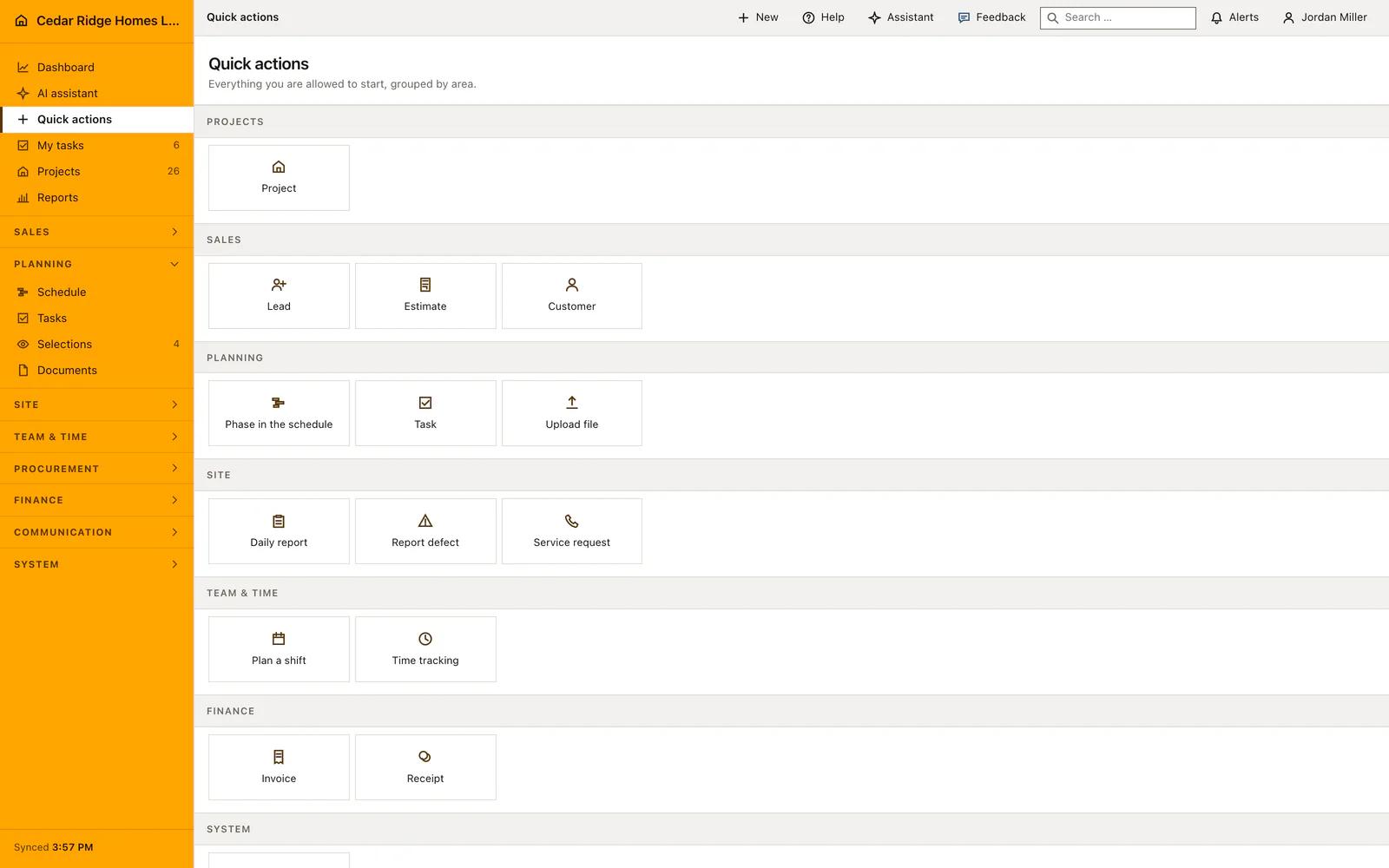
Quick actions is a page of the navigation listing every record the signed-in user may create, grouped the way the sidebar is grouped. Each entry carries both the read permission of its module and the write permission of its save route, so an offered tile cannot end in a refusal. When a project is active it is named in the page head and travels into the form.
How roles and permissions decide what the page offers
Nothing on this page is maintained by hand. A fixed catalog of create routes carries its own permission pair, and an entry drops out as soon as one half is missing. Creating a project or a schedule activity needs projects.view together with projects.manage. A work task needs workforce.manage. A shift needs workforce.view together with workforce.manage, while the time tracker needs only workforce.view. Inviting a colleague needs users.manage.
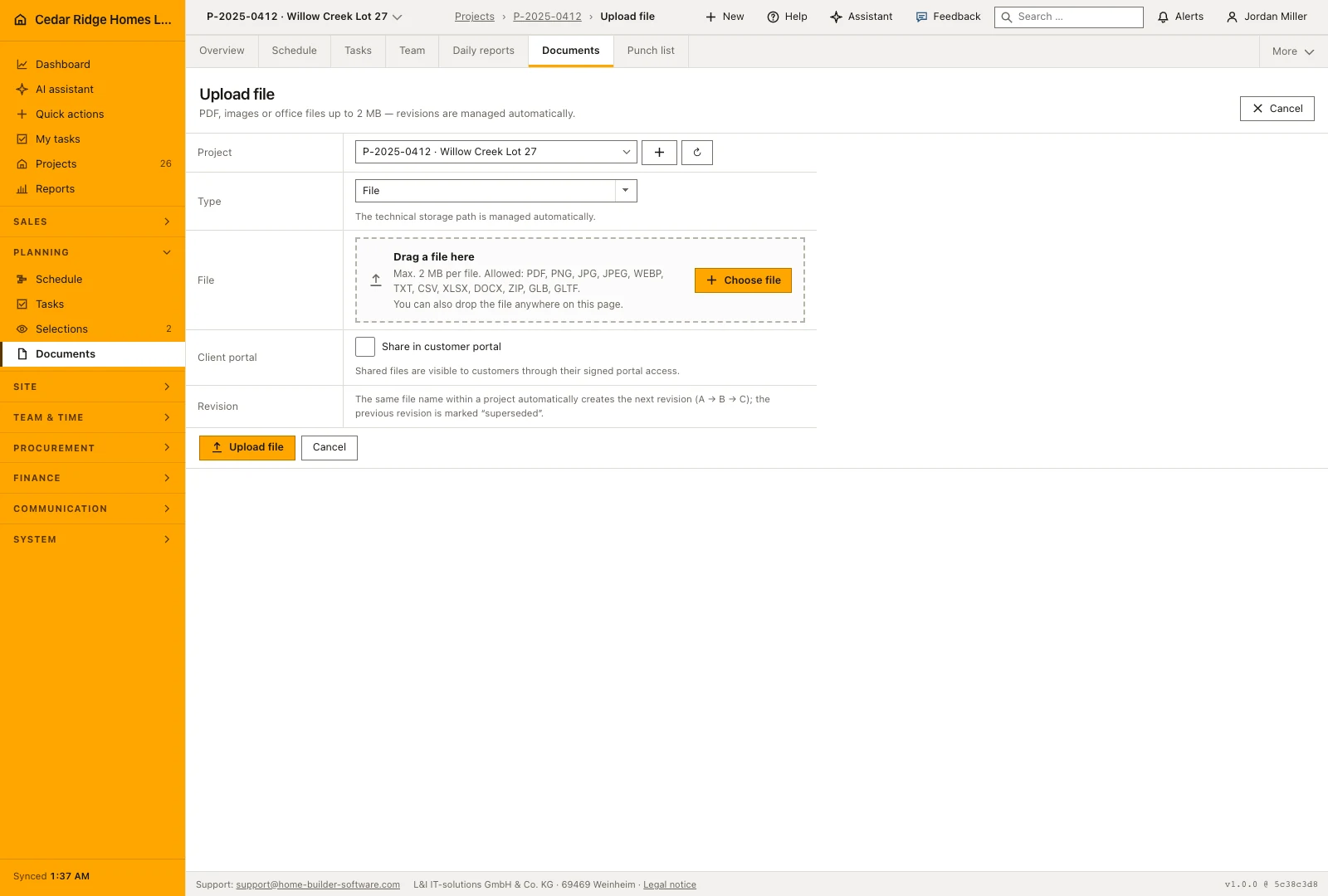
Field records sit on the site pair: a daily report, a defect and a document upload each need projects.view with site.write, and a service request needs projects.view with records.write. Lead, estimate and customer need records.view with records.write, while an invoice or a finance entry needs finance.view with finance.manage. Roles themselves are edited under Settings, users and permissions, and this page follows on the next visit without any further step.
Starting a record from the quick actions page
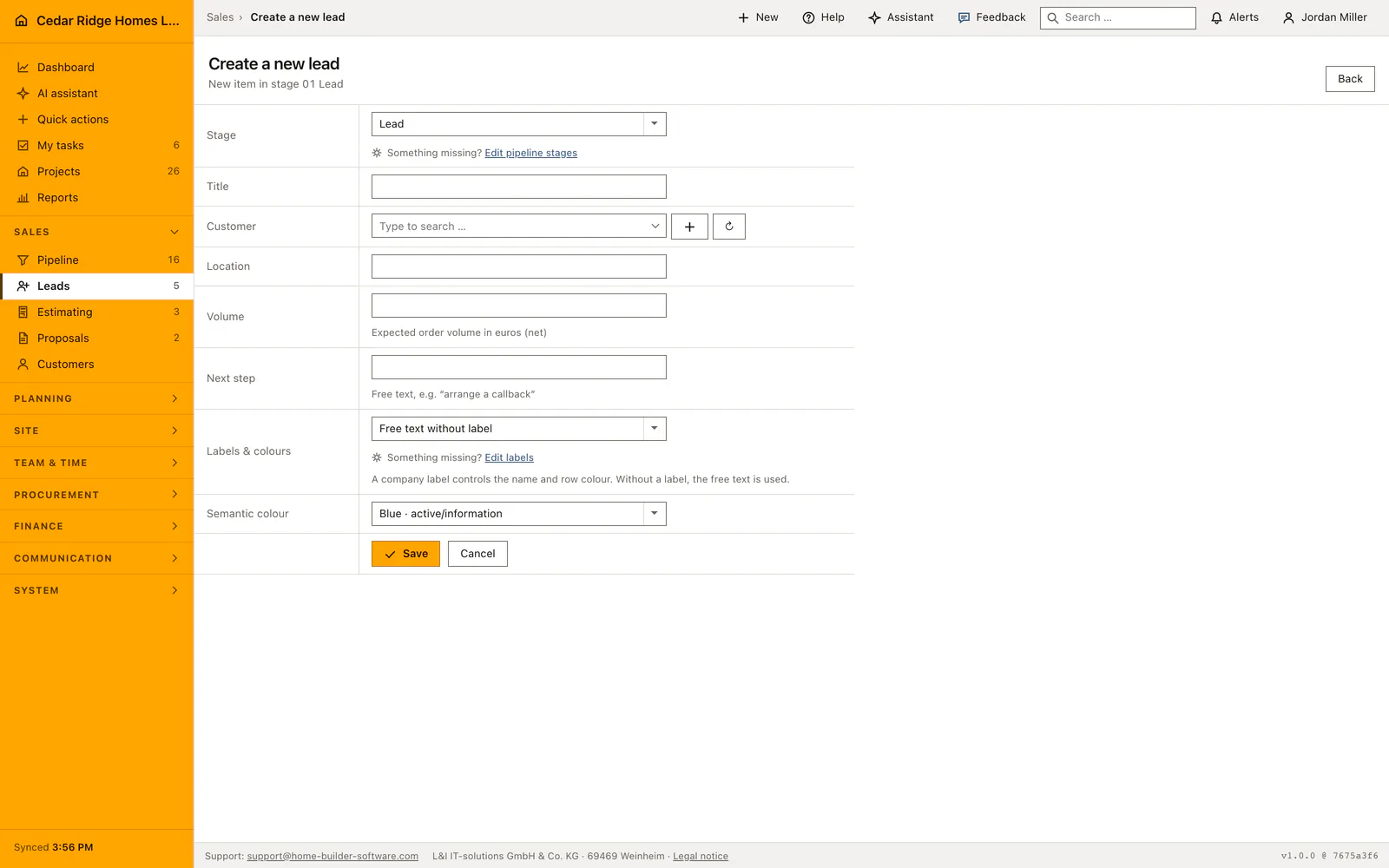
Open the page from the navigation and the tiles appear in the order of the sidebar, with project creation pinned first and sales, planning, site, team and finance following. A tile leads straight into the module's own create screen with its own fields and its own validation, so a lead opens with title, customer, location, expected volume and the next step rather than with a reduced copy of that form.
A running time entry is shown above the groups as a notice naming the project and offering the way out of it, and the clock tile then reads clock out instead of clock in. Where a role may create nothing at all, the page says so in one sentence rather than presenting an empty grid, which is a clearer answer for a new account than a screen of tiles that all refuse.
Carrying the active project into the form and clearing it again
The active project is the one last opened or picked in a module selector; it is remembered in the session per company and is never carried across companies. On this page it stands in the sub line with its number and name. Daily report, defect, document upload, service request, estimate and invoice open with that project already set, and the task form receives it as its own project parameter because the module spells the filter differently.
The button in the page head calls the page with the project parameter set to all, which forgets the context for every module at once, not only here. Project creation, shift, customer, lead and finance entry deliberately ignore the context, because those records do not belong to a single site. An explicit project parameter in a link always beats the remembered one, so a bookmark stays predictable.
Why an action is missing from your quick actions
A missing tile always means a missing permission, and it is worth checking both halves. A role with finance.view but without finance.manage reads invoices and sees no invoice tile. A role with workforce.view but without workforce.manage keeps the time tracker and loses the task and shift tiles. Adding the missing half under Settings brings the entry back for everyone who holds that role.
The hidden tile is a courtesy, not the boundary. The create screen checks the permission again, and the save route is checked once more by the mutation middleware, so a link copied from a colleague's screen fails at the door rather than half-way through. This is also why the page doubles as an honest answer to what can this account actually do, which is the first question a new user has.
The same list behind this page, the phone bar and the New button
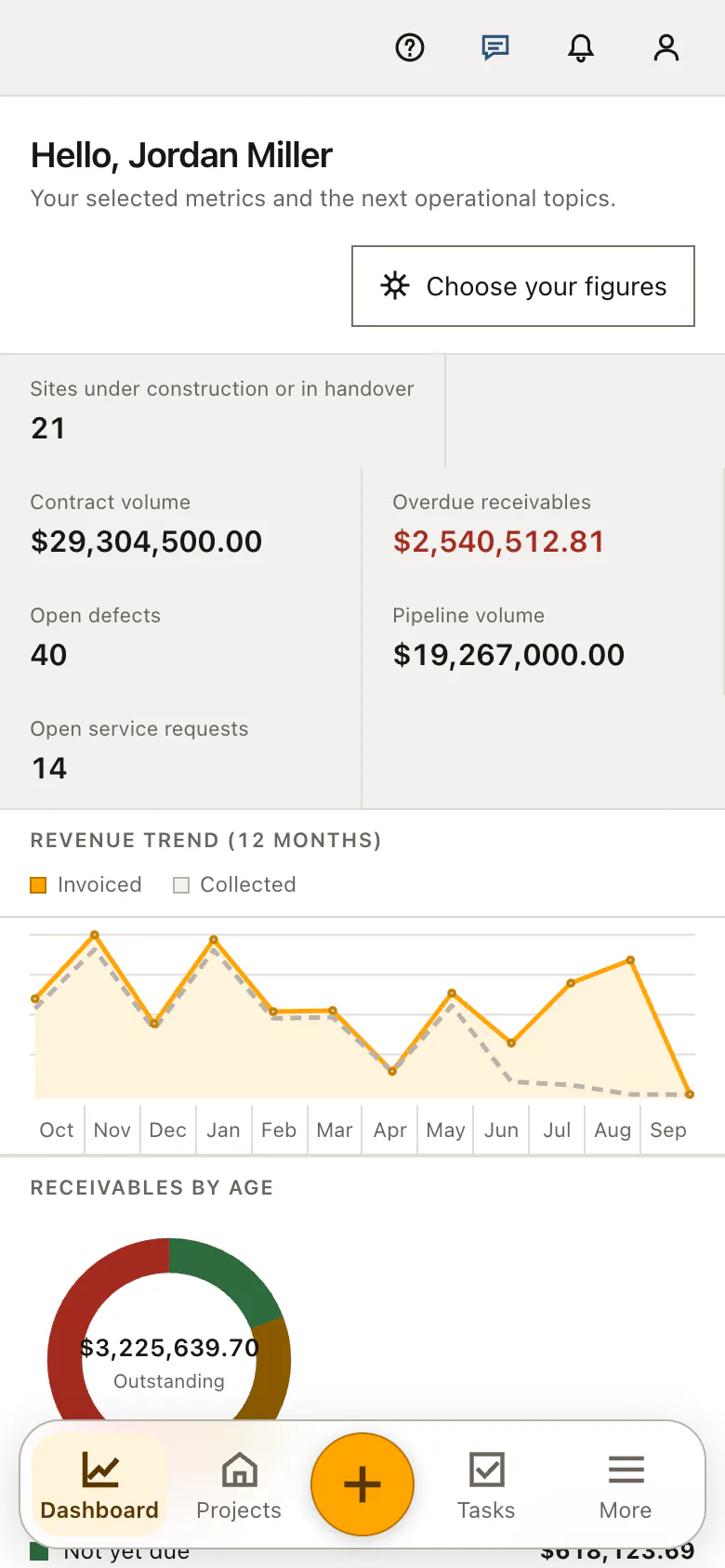
The page, the action button of the phone bottom bar and the New button on a wide screen all read one catalog, so the three cannot offer different things to the same person. The phone bar additionally carries a short set of destinations, chosen by permission as well: the dashboard first, then a reading destination and a working destination, kept short enough that no label has to be truncated.
Because every tile is the module's own create route in Home Builder Software, whatever that module requires still applies. A defect opened from here lands in the defect list with its status and its project, a document upload lands in the folder structure of that site, an invoice enters the number range configured under finance settings. This page shortens the way to the form and changes nothing about the record that follows.
Quick actions in practice: a clock-in and a new lead at Cedar Ridge Homes
Travis Nguyen, field lead at Cedar Ridge Homes, opens the quick actions page on site. His role carries the site pair and workforce.view but not workforce.manage, so the page offers daily report, defect, document upload and the time clock while the task and shift tiles stay away. Willow Creek Lot 27 is his last opened project and stands in the sub line, so the daily report form arrives with that site already set. He clocks in at 6:30 AM; from then on a notice above the groups names the running entry, and when he clocks out at 3:00 PM the day closes with 510 minutes, which the team figures read as 8.5 hours.
In the office Megan O’Brien presses the New button, which reads the same catalog as the page itself. As estimator she holds records.view with records.write, so the lead tile is there; the form opens in stage 01 Lead and she enters the title Camden Farms garden suite, the existing customer Camden Farms LLC, the location Zebulon and an expected volume of $412,000, with a callback as the next step. A lead deliberately ignores the active project because it belongs to no site yet. On the next dashboard load the pipeline volume tile climbs from $19,267,000.00 to $19,679,000.00, exactly the volume she just recorded.
Permission-aware quick actions: checks before saving
An entry appears only when the signed-in role holds both the read permission of the module and the write permission of the save route.
The create screen and the save route check the permission again, so a copied link cannot start work the role may not finish.
The active project is remembered per company in the session and is never carried from one company into another.
Calling the page with the project parameter set to all clears the context for every module, not only for this page.
Permission-aware quick actions: common mistakes
Only some forms take the active project: a shift, a customer, a lead and a finance entry ignore it on purpose. Expecting the project on those records leads to a search for a field that is not there.
Clearing the context here clears it everywhere, so the next module opens unfiltered. Pick the project again in a selector before assuming the data has gone.
A tile that is missing for one colleague and present for another is a role difference, not a defect. Compare the two roles under Settings before reporting it.
The product page describes the same module from the business side, with the decisions it supports and the modules it connects to.
See the product pageFrequently asked questions
What appears under Quick actions?
The page lists the create actions the signed-in user may start, grouped by the same areas as the navigation.
Does opening an action lose the selected project?
No. When a project is active, supported actions carry that project into the new record.
Configuring this part for your own company?
Describe the sequence you follow today and the result you need at the end of it. We can walk through the settings that produce it.