
Construction service requests: setup and daily use
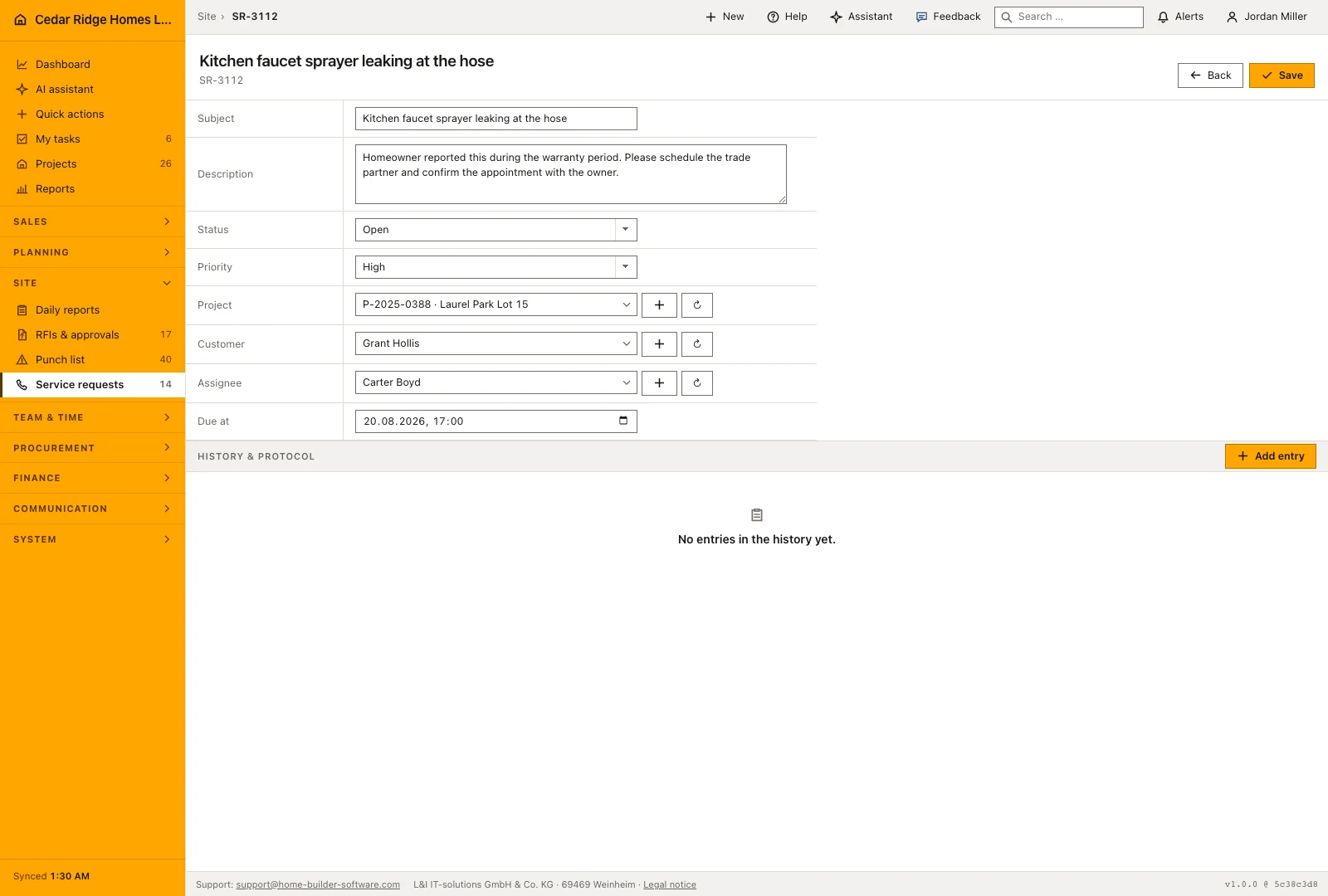
Service requests live at /tickets, numbered TK-00001 upward and deliberately kept apart from defects: a subject, a description, a priority, a due date, the customer, the project and the person who owns the case. The list follows the site chosen in the top bar and counts open, overdue and urgent rows on screen. What follows covers the pickers, the capture form, the list, the rights and the handovers.
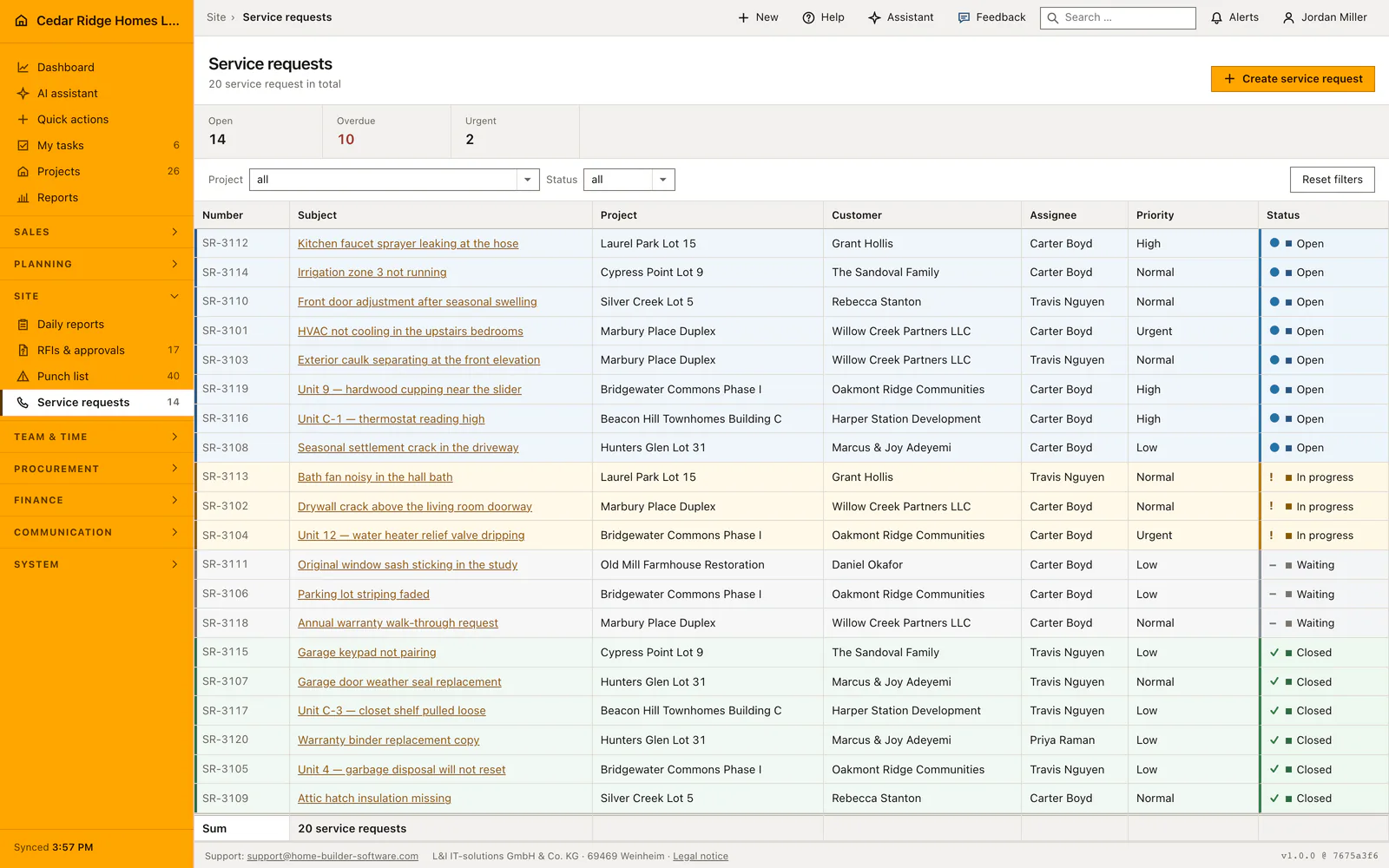
Customers, projects and assignees a service request can point at
The customer picker offers contacts of the customer kind, the project picker offers your company's jobs, and the assignee picker offers active user accounts. All three are optional on the record, yet each one is checked against your company when the request is saved, and an id from anywhere else is rejected outright. Opening the module needs projects.view, because a service call is site work a foreman has to be able to reach.
Creating and editing a request needs records.write, and the route asks for that right in its own name rather than trusting a hidden button. Numbers are issued per company as TK followed by five digits and are unique within the company. Unlike defects and questions to the architect, a service request carries its own company id, so it can exist with no project attached at all.
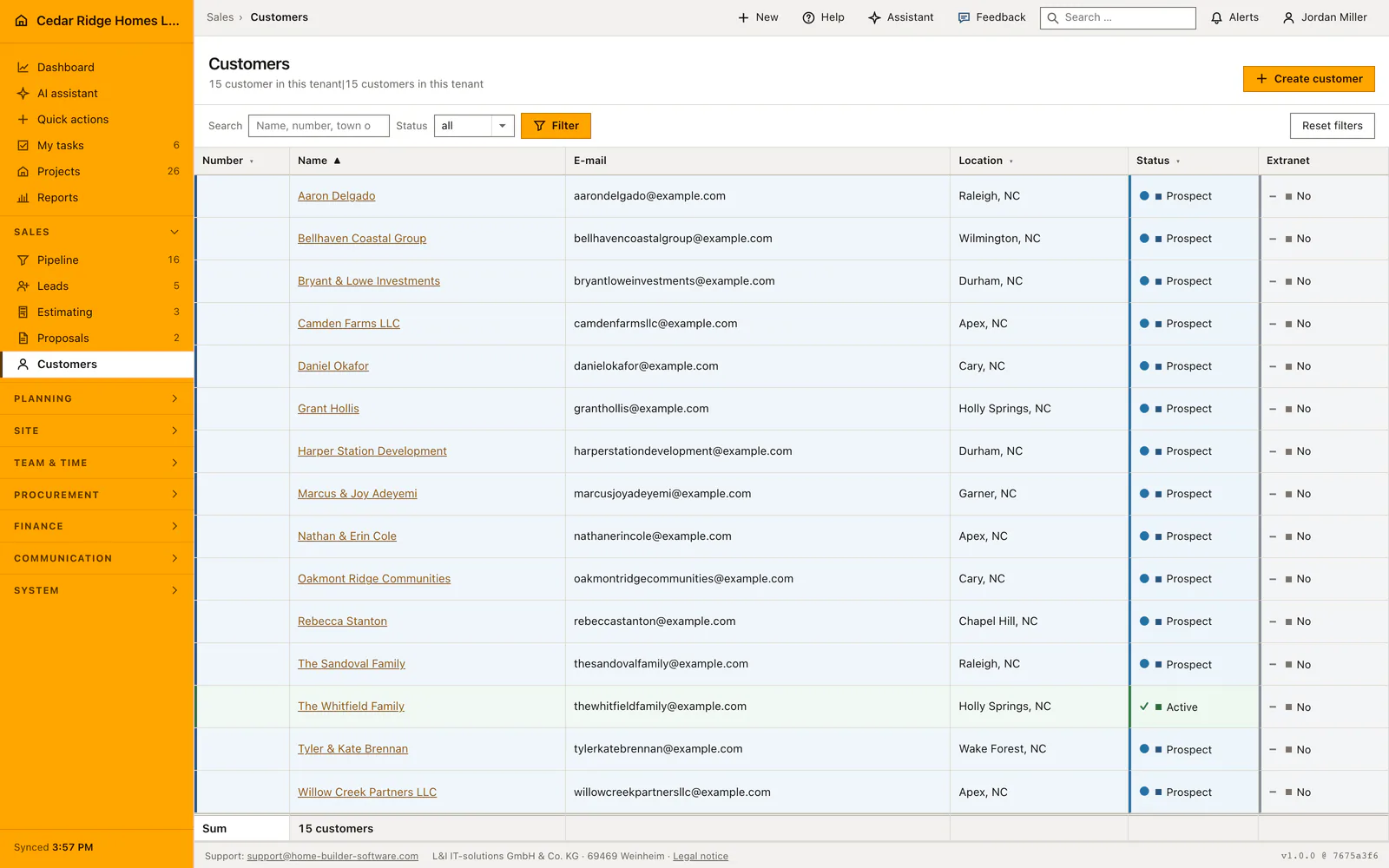
Opening a request: subject, description, priority and due date
The subject takes up to 180 characters and is the only required text beside status and priority; the description takes up to 10,000. Priority runs low, normal, high and urgent, while status runs open, in progress, waiting and closed. A due date can be set, and the form starts every new request on open at normal priority so the ordinary case needs two entries and a save.
Saving opens the request file, where each field is corrected in place, followed by the custom fields your company defined and the shared history. Closing a request stamps the moment it was closed, and moving it back to any other status clears that stamp again, so a reopened case never carries a closing date it no longer deserves.
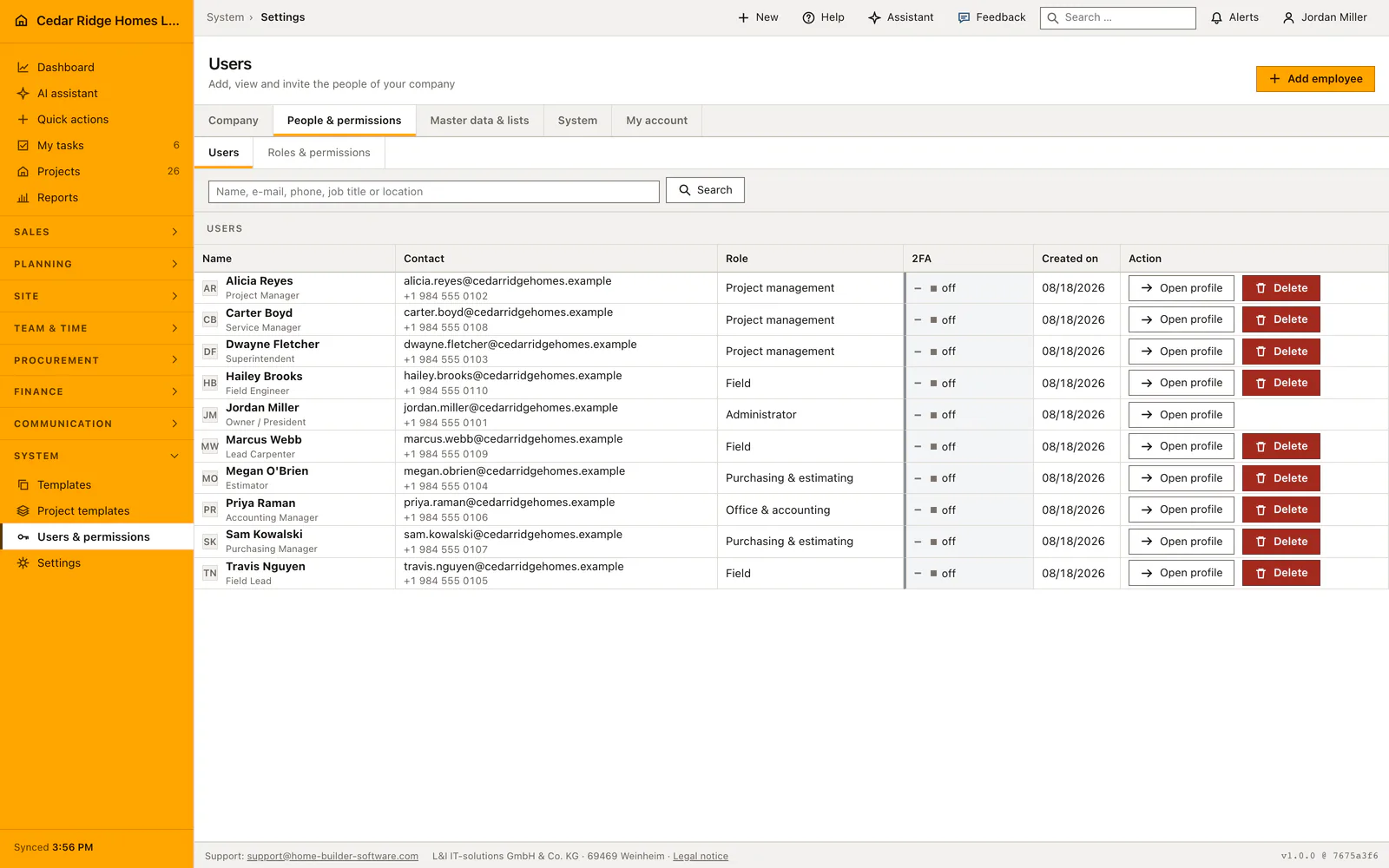
Reading the list by site, status and the open, overdue and urgent figures
The register sorts by status in working order, open first, then in progress, then waiting, then closed, with the newest first inside each group. The project filter offers every site rather than only the ones that already own a request, so the control can always name the site the table is narrowed to. The status filter is checked against the four allowed values.
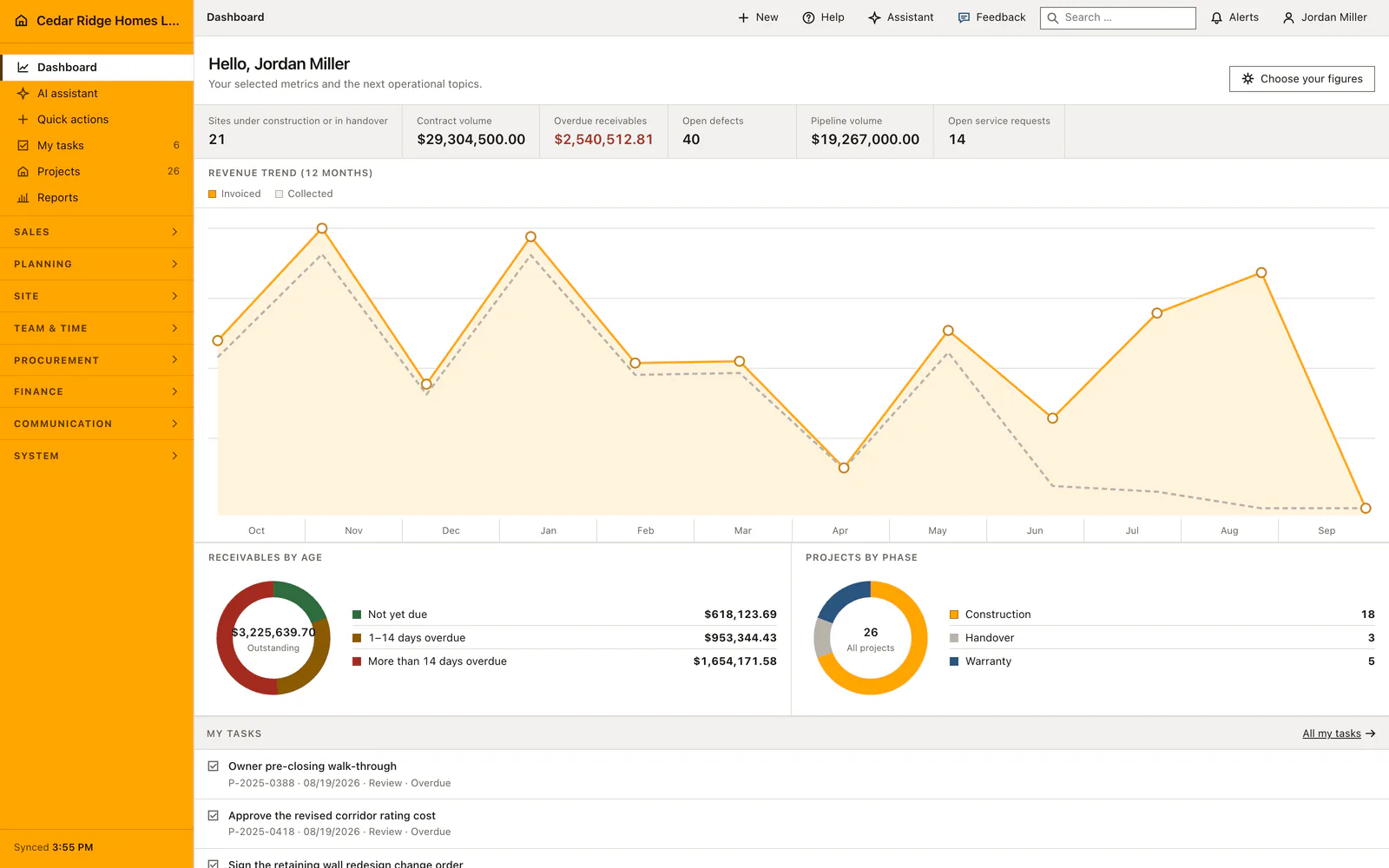
The figures count open requests, those past their due date and still not closed, and open ones marked urgent, always for the rows on screen. When the list is empty under an active site it names that site and offers the way back to all of them, because an empty table and a company with no requests would otherwise look identical.
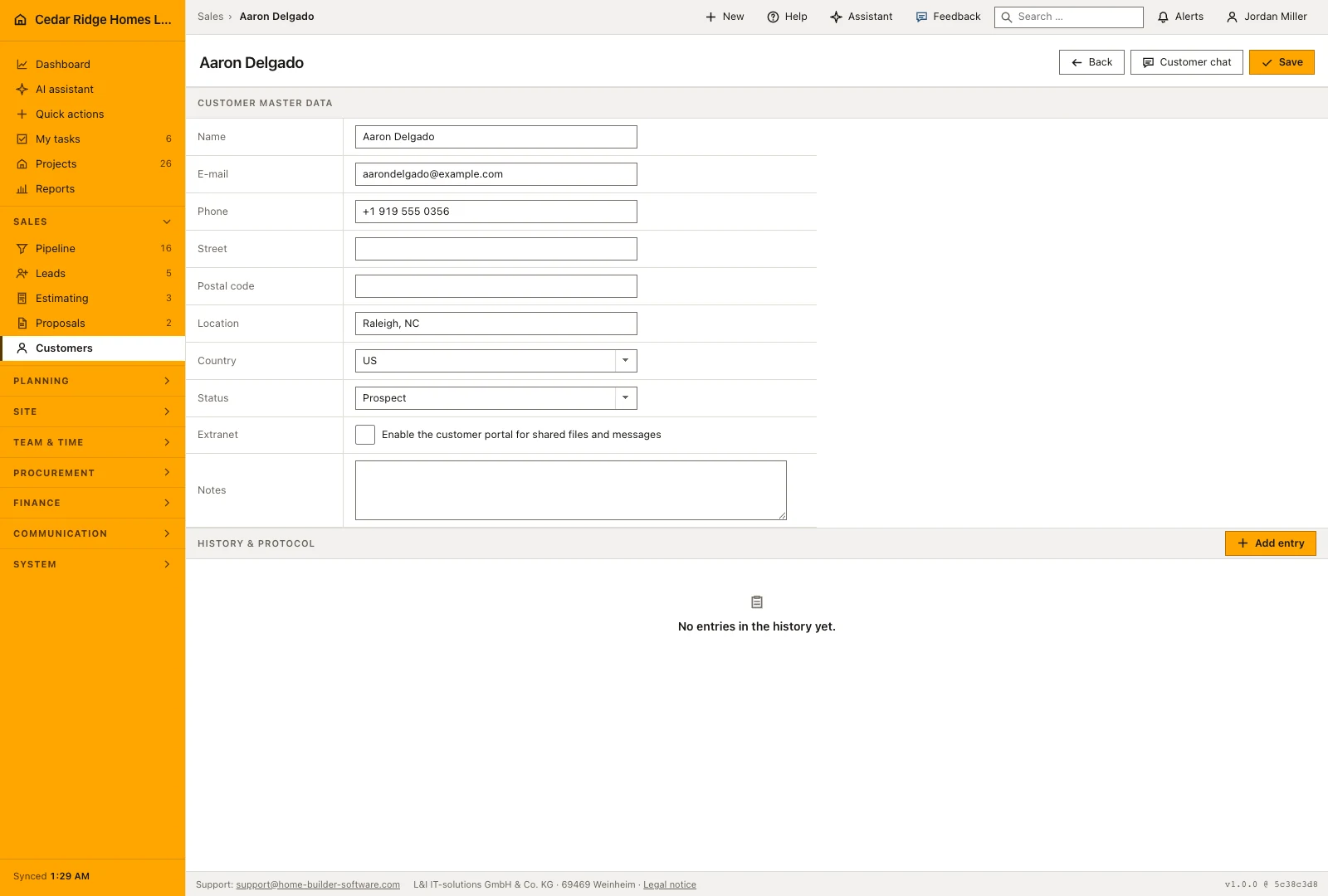
Ownership, closing dates and the trail a request leaves
Assignee is the field that turns a call into somebody's work, and it is edited on the file like any other. Creation and every update are written to the audit log with the request they belong to. Roles are configured under Settings, where users are listed with the role that decides whether they may write records at all and whether they reach this module.
The list follows the project remembered across the whole application, so a site selected in another module narrows this register too. A restricted account sees only requests of its own projects, while company-wide requests without a project stay visible where the role allows it. Deleting is not offered here; a case that came to nothing is closed rather than removed.
Service requests in daily reports, the dashboard and project templates
A daily report can link the service requests of its own project, which dates the visit that settled one and files it beside that day's work. Only requests of that project are offered, and a tick from elsewhere comes back as a field error. The AI daily report draft also reads the service requests of the chosen project and period.
The dashboard can carry open service requests as one of its configurable figures, together with a panel that lists them by number, subject and assignee. A project created from a process template opens the requests that template marks as service work, tied to the customer, to the site manager and to the schedule activity whose last day sets the due date.
A service request example: the Marbury Place warranty call
On Saturday, 08/15/2026, the property manager at Willow Creek Partners LLC reports that the upstairs bedrooms of Marbury Place Duplex, handed over in 2024 and still inside its warranty, are no longer cooling. The office opens SR-3101 with the subject HVAC not cooling in the upstairs bedrooms, priority urgent, due date 08/16/2026, customer Willow Creek Partners LLC, project Marbury Place Duplex and assignee Carter Boyd, the service manager working from the Raleigh main office. Home Builder Software verifies customer, project and assignee against the company and starts the request on open.
On the morning of 08/19/2026 the register counts 14 of the company's 20 requests as open, 4 of them past their due date and 2 marked urgent, and SR-3101 stands in all three figures because 08/16/2026 went by with the status still on open. Boyd's technician finds a failed capacitor at the outdoor unit on 08/20/2026, and the closing that evening stamps the moment on the file. Every one of the three figures falls by exactly one, to 13 open, 3 overdue and 1 urgent. Had the fault returned, moving the case back to in progress would have wiped the stamp.
Construction service requests: checks before saving
Project, customer and assignee are each verified against your own company before a request is saved, and an unknown id is refused.
Creating and editing a service request requires records.write on the route itself, so a read-only account cannot post the form directly.
The closing timestamp is set when the status becomes closed and cleared again as soon as the request moves to any other status.
Numbers are unique within a company as TK followed by five digits, so two requests can never share one number.
Construction service requests: common mistakes
A request without a due date cannot be counted as overdue, and the figure above the table stays at zero while the case ages. Give a date even when the customer did not name one.
Waiting is not a parking space for anything unclear. It means the work is blocked by something outside the office, and mixing the two hides real cases behind a status nobody chases.
Service requests are not defects. A fault on a building still under construction belongs on the punch list with its trade and its deadline, while a call from an owner after handover belongs here.
The product page describes the same module from the business side, with the decisions it supports and the modules it connects to.
See the product pageFrequently asked questions
Can service requests be linked to both a customer and a project?
Yes. Both relationships are available alongside the responsible person and due date.
Does the list follow the active construction site?
Yes. With a site selected it filters to that site; without one it can show the whole company.
Configuring this part for your own company?
Describe the sequence you follow today and the result you need at the end of it. We can walk through the settings that produce it.