
Construction scheduling and Gantt planning: setup and daily use
The schedule holds one plan per project in three views: a month calendar, a Gantt chart and an editable activity list. An activity carries dates, progress, status, owner, crew, phase, predecessors and lag, and every date calculation runs against the company working calendar. Editing needs the project management right. Bars can be dragged, dependent activities recalculated and a baseline frozen, and the critical path is marked only where the plan has links.
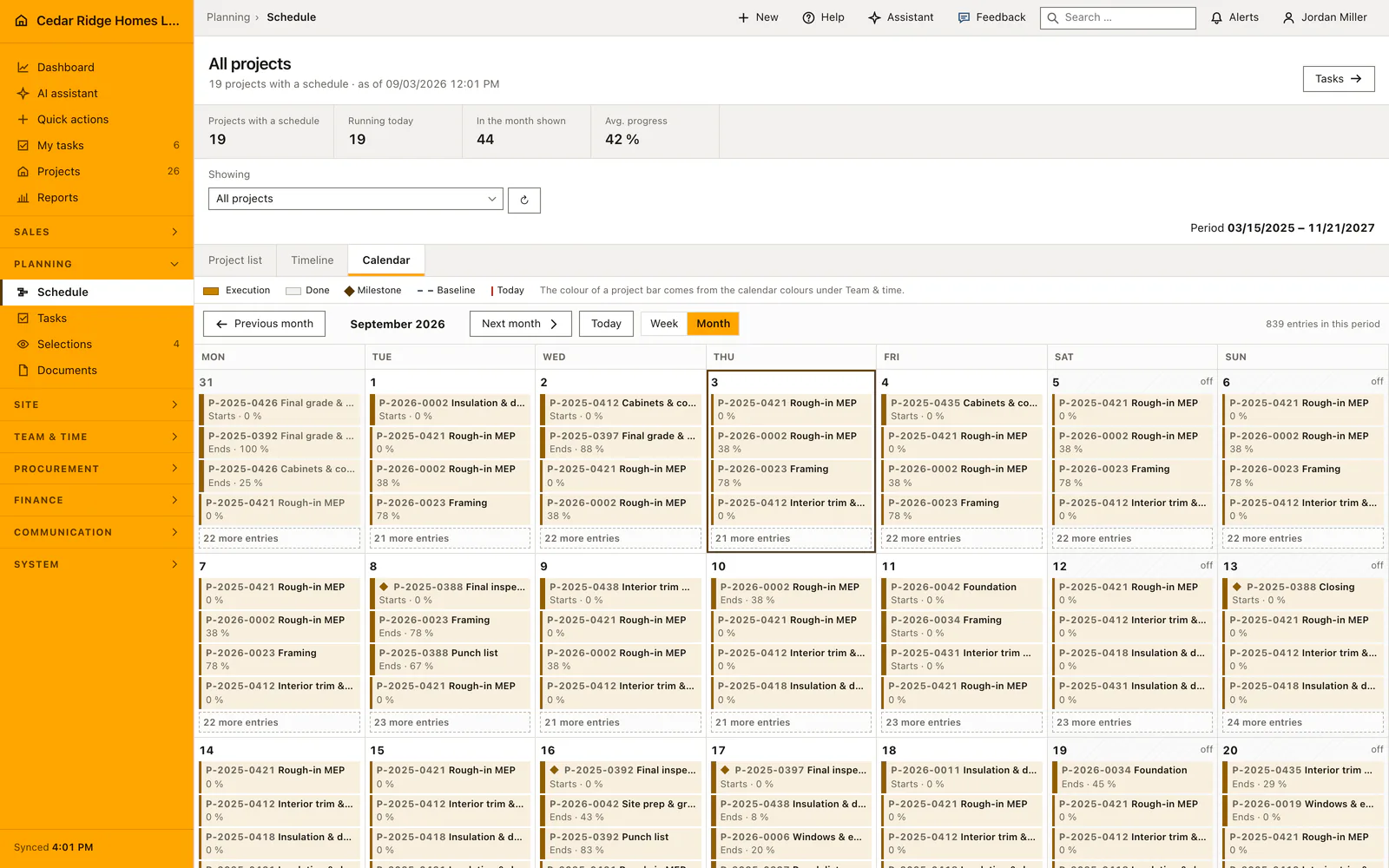
Working calendar, time zone and the project management right
Each tenant has one default calendar, created on first access with Monday to Friday, a day from 07:00 to 17:00 and the time zone of the installation. The form under the plan sets the regular working days, the start and end of the working day and the time zone. It also takes one named exception date, marked either as a public holiday or as an additional working day.
Everything that moves a date reads this calendar, so a works shutdown entered here acts at once on template planning and on dependency recalculation. Viewing the plan needs the project view right. Creating, editing, deleting, recalculating, saving a baseline, applying a template and changing the calendar all need the project management right. Where a user's project access is restricted, an activity outside their list answers with a not-found response instead of being hidden.
Building a plan from a project template or activity by activity
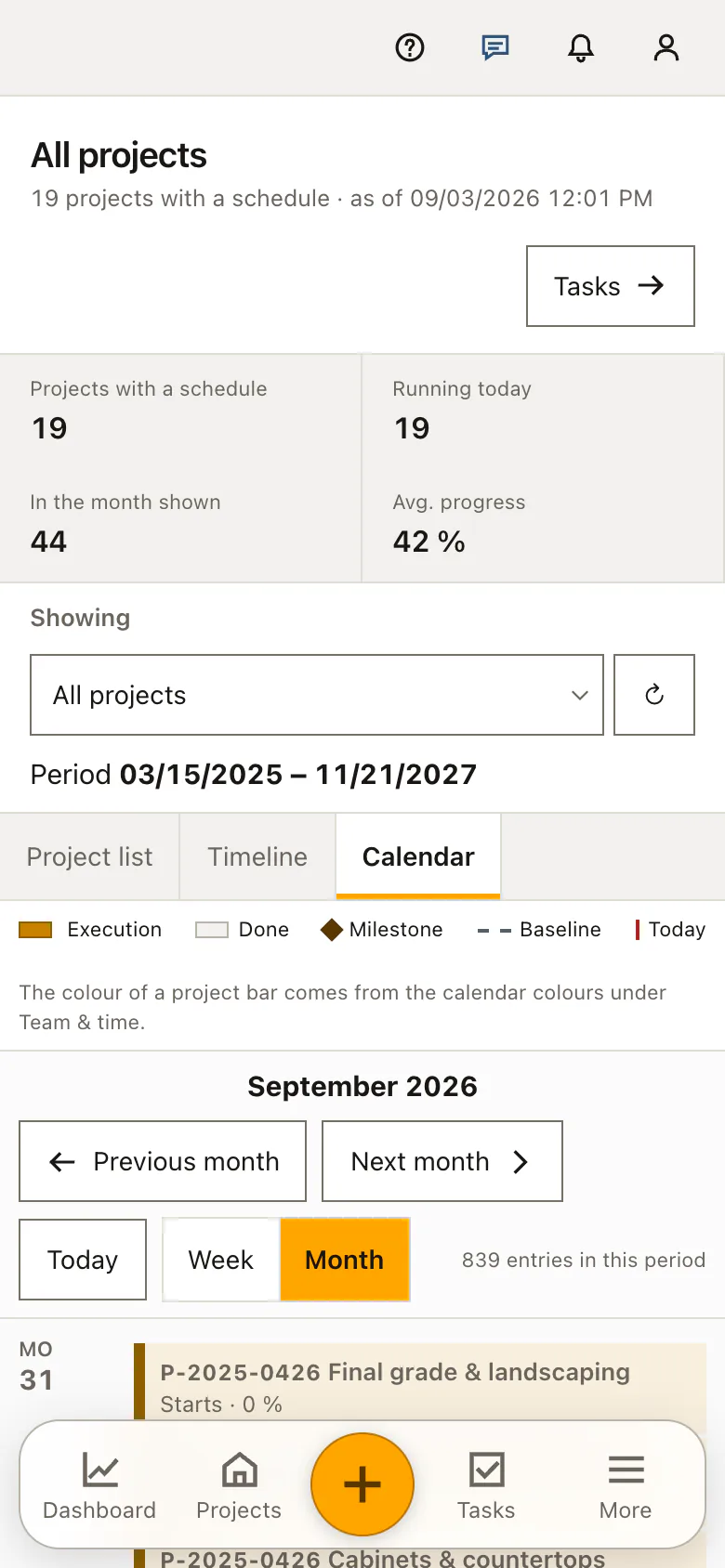
A project without a plan does not have to be typed trade by trade. Apply template asks for the template, the first working day on site and, where activities already exist, whether the current plan is kept and the template appended or whether it is replaced. Phases, activities and the tasks belonging to them are written in one operation, counted in working days, so no step begins on a day nobody works.
Replacing detaches the tasks from the old bars before the activities are deleted, so work somebody wrote down does not disappear with its bar. The project also remembers which template its plan came from, if it did not already carry one. Creating a single activity by hand stays available, and that form opens on the project currently shown in the plan.
Editing dates, predecessors, lag and phase on one activity
An activity carries a name, a description, a start, an end, progress from zero to a hundred, a status among planned, in progress, blocked, done and canceled, and a type of activity, milestone or summary. Progress and status are reconciled on save: full progress reads as done and the other way round. The end may not fall before the start, and the process type gives the automatic color while no color of its own is set.
Predecessors are a list rather than a single field. Each link stores its type separately, as finish to start, start to start, finish to finish or start to finish, together with a lag between minus and plus three hundred and sixty-five days. Self references and cycles are refused. New phase creates a section and files the activity into it with the same save, overriding the phase select above it.
Who may move a bar, and what the photo gate refuses
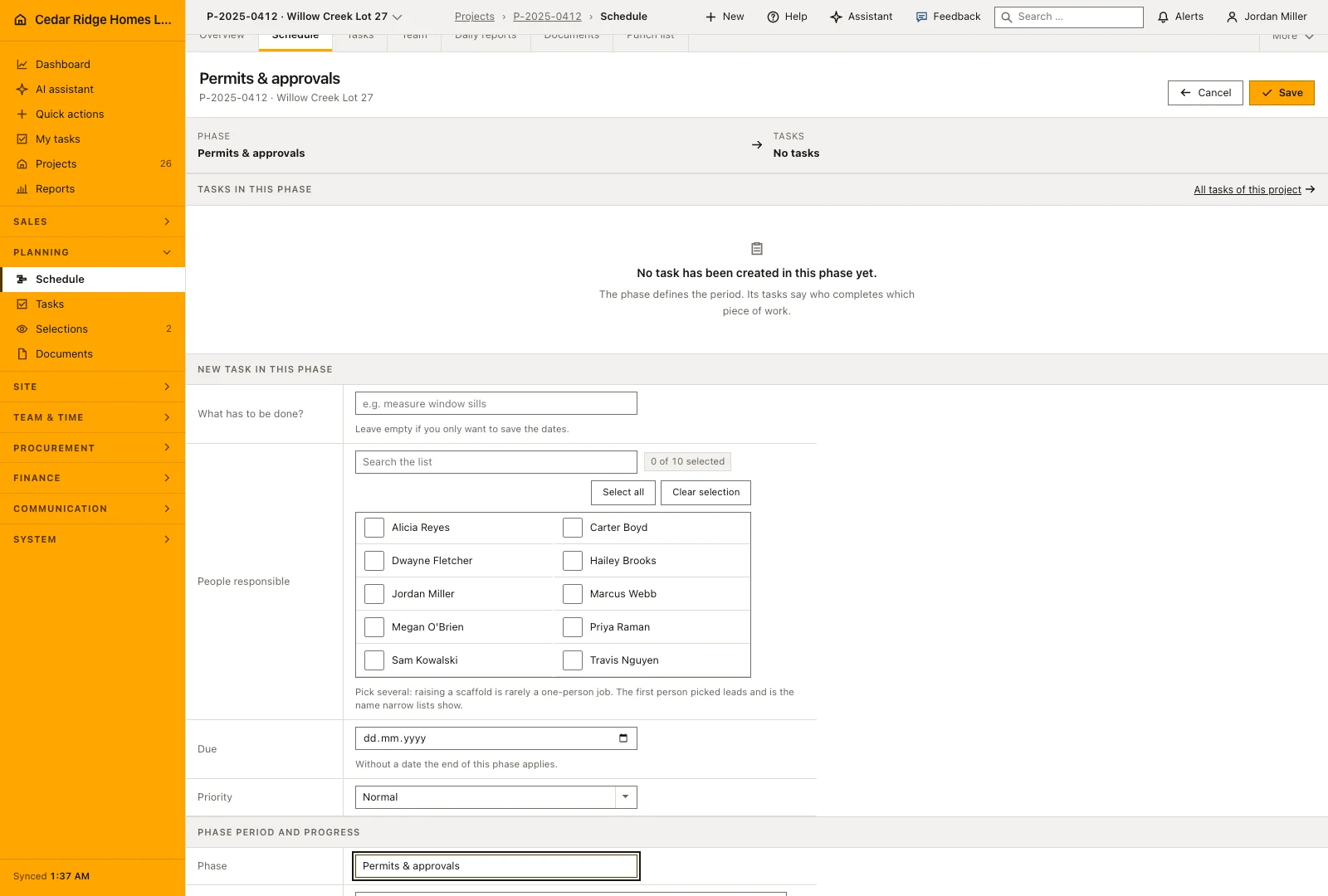
Dragging a bar sends a change to the schedule interface. That interface asks for the project management right, verifies the tenant through the project, checks that the end does not precede the start and writes an audit entry. If the request fails, the browser puts the bar back where it was. Recalculation, baseline and template application are logged in the same way, each with the project and the number of activities touched.
An activity that demands photo evidence cannot be set to done or to full progress while no photo inspection hangs on it. Planning it, moving it and reporting ninety percent all stay possible; only finishing is refused, and the error message quotes the check the company itself wrote. The operational checklist is ticked on the open activity and stored with a save of its own.
How the plan reaches tasks, the customer portal and the progress report
The phases of the plan group the task list, so dispatch works in the order the site does, and a task can hang off a specific activity. A new task is created directly in the activity form and takes over the end of that activity when no date of its own is given. The row in the plan shows how many of its tasks are already done.
The customer portal shows the coming activities with their period under the next steps, without any internal figure beside them. The progress report takes dates and completion from the same plan instead of asking for them again. The company view draws one bar per project in its own color, which is where site management sees whether the jobs overlap.
Worked example: a drywall delay in the Harper Station Townhomes schedule
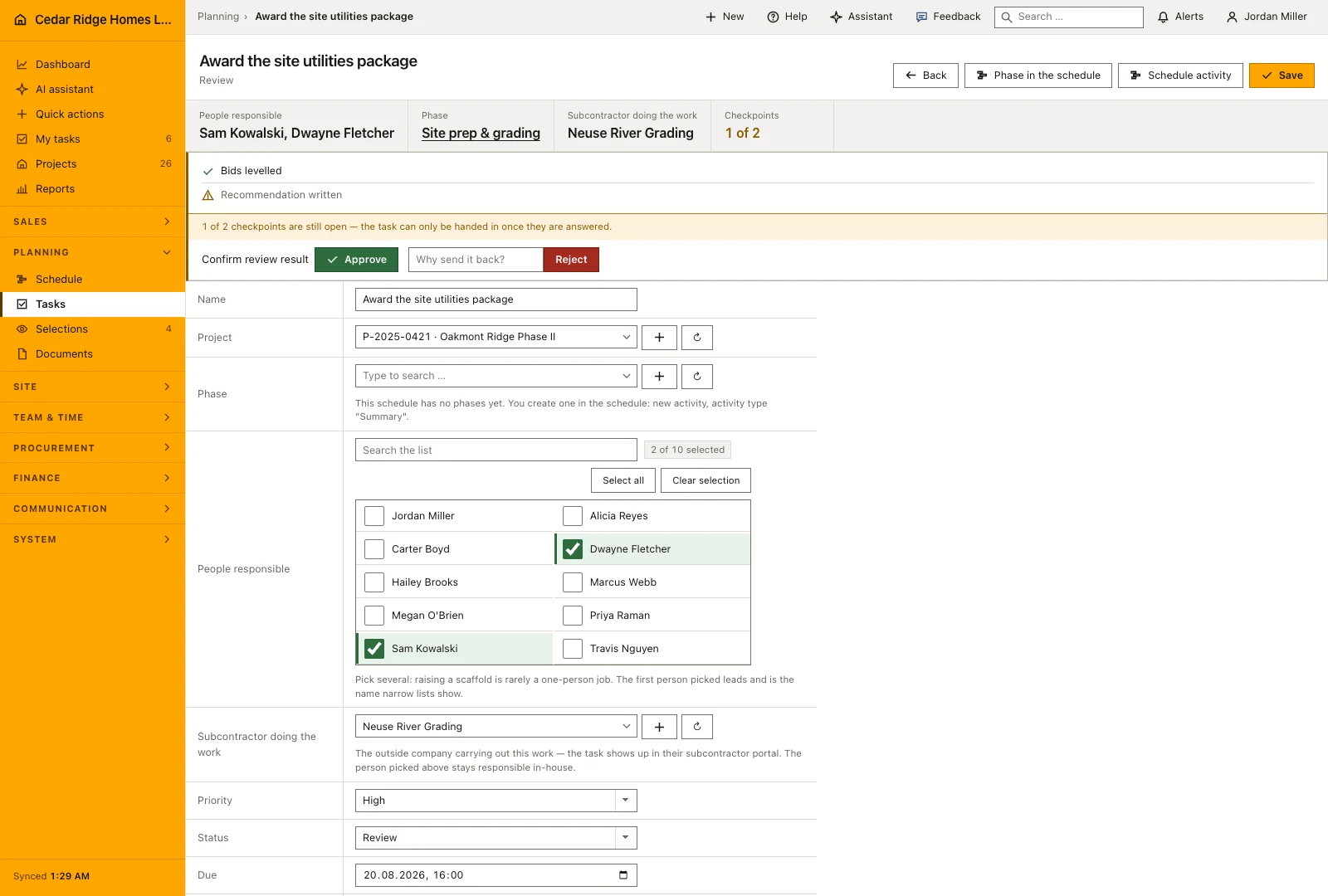
In the Harper Station Townhomes plan, drywall for Building B stands at 09/03/2026 to 09/17/2026 — ten working days, because the company calendar skips two weekends and the Labor Day exception that Cedar Ridge Homes entered for 09/07/2026 as a public holiday. When the board supplier pushes the delivery, Dwayne Fletcher drags the bar two working days to the right: the start lands on 09/08/2026, the end on 09/21/2026, since the count simply continues across the same non-working days. The interface checks his project management right, verifies the tenant through the project and writes an audit entry before the bar keeps its new place.
Interior trim and paint hangs on the drywall through a finish-to-start link without lag, so the recalculation pulls its start from 09/18/2026 to 09/22/2026 in the same run and notes how many activities it touched. Against the baseline saved in July, the Gantt now draws the two-day variance beside both bars instead of hiding it. The trim activity also demands photo evidence, so done stays out of reach until a photo inspection hangs on it, whatever its progress reads. In the customer portal, the customer Harper Station Development sees the new trim period under the next steps of the fourteen-unit job — dates, not internal figures.
Construction scheduling and Gantt planning: checks before saving
Every date calculation, template application and bar movement follows the working calendar; weekends, holidays and works shutdowns are skipped.
An activity requiring photo evidence reaches neither done nor full progress before a photo inspection is attached to it.
Self references and dependency cycles are refused, and the critical path appears only when at least one activity has a predecessor.
Editing, recalculating, baselining and applying a template all need the project management right and each write an audit entry.
Construction scheduling and Gantt planning: common mistakes
A plan whose trades are not linked has neither a critical path nor a cascade: a moved bar pulls nothing along. The legend says so explicitly, and the remedy is predecessors rather than generous buffers on every activity.
Replacing an existing plan with a template deletes the activities. The tasks that hung on them survive but lose their place in the plan. Reattach them, or choose to append instead.
Saving a baseline overwrites the previous target dates of every activity of the project at once. Save it when the plan is agreed, not while a trade is still being moved around.
The product page describes the same module from the business side, with the decisions it supports and the modules it connects to.
See the product pageFrequently asked questions
Does the schedule account for non-working days?
Yes. Recalculation and template scheduling skip weekends, holidays and company exceptions from the working calendar.
Can an activity move its successors?
Yes. Linked successors move when the plan is recalculated or a bar is dragged, subject to the configured relationships and lag.
Configuring this part for your own company?
Describe the sequence you follow today and the result you need at the end of it. We can walk through the settings that produce it.