
Construction task management: setup and daily use
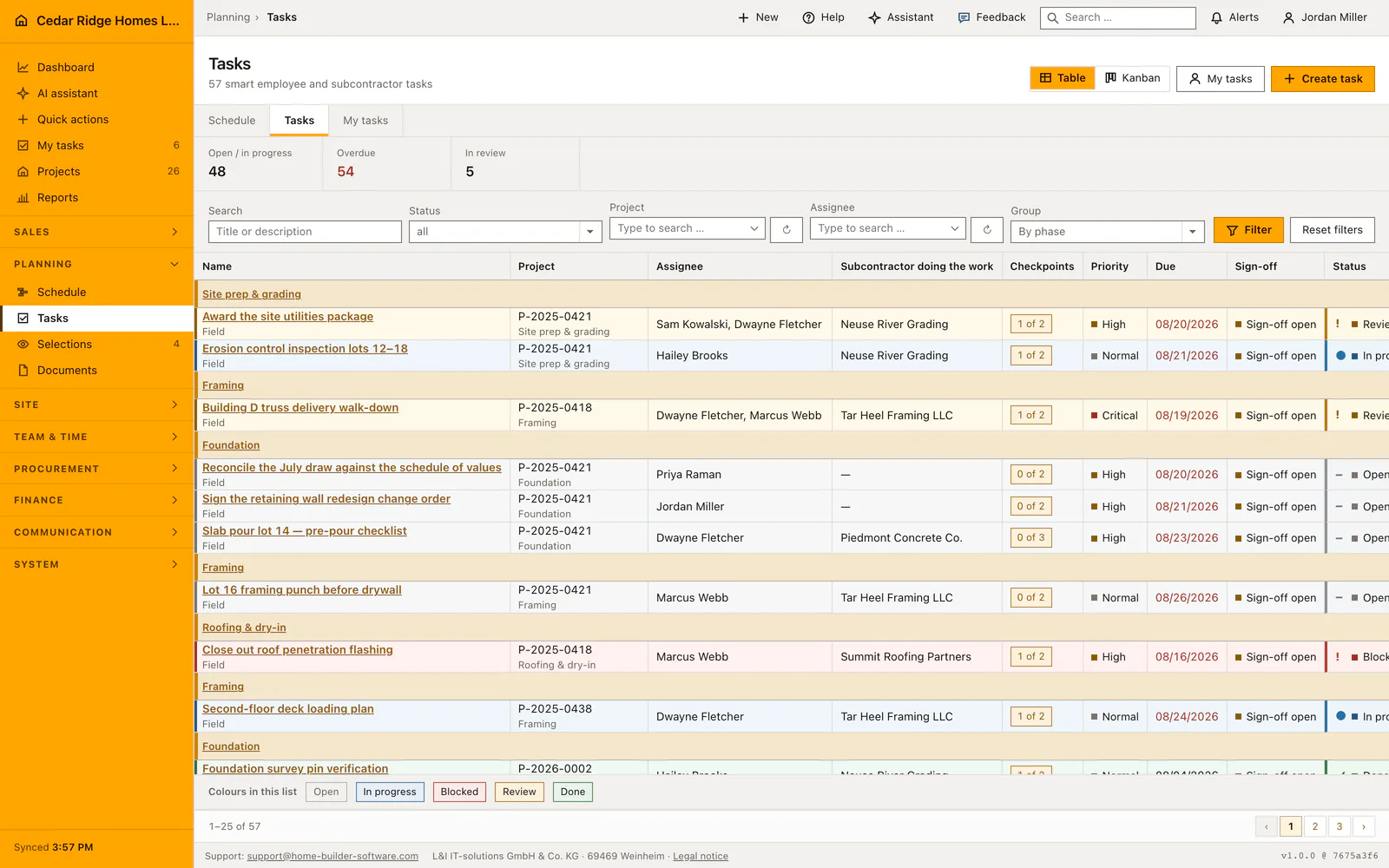
Tasks live under Planning and team, grouped by the schedule phase they belong to. Open the list, filter it to a project, and create a task with a title, a due date, several people responsible and an approval mode. Checkpoints written on the task decide when it may be handed in. Everyone with workforce.view reaches their own work and anything unclaimed; workforce.manage sees and plans the whole company board.
Schedule phases and workforce rights a task needs
Before the list can group anything, the project schedule needs summary activities. A phase is the summary bar a task sits under, structure or fit-out or handover, and one rule serves the schedule, the activity form and the task list alike. A plan built only from plain bars has no phases, and the list then heads its groups by the kind of work instead. You create a phase in the schedule as a new activity with the activity type Summary.
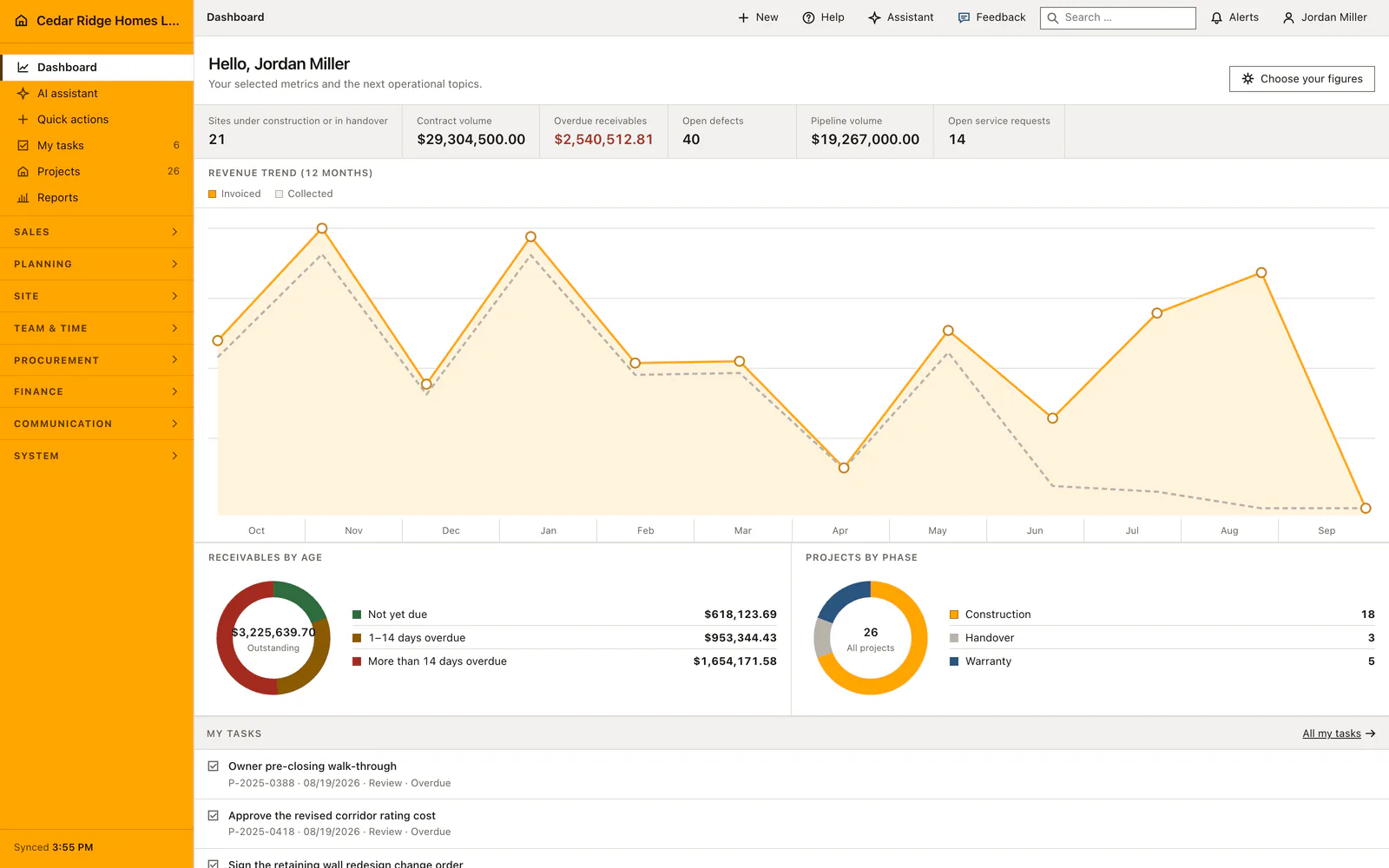
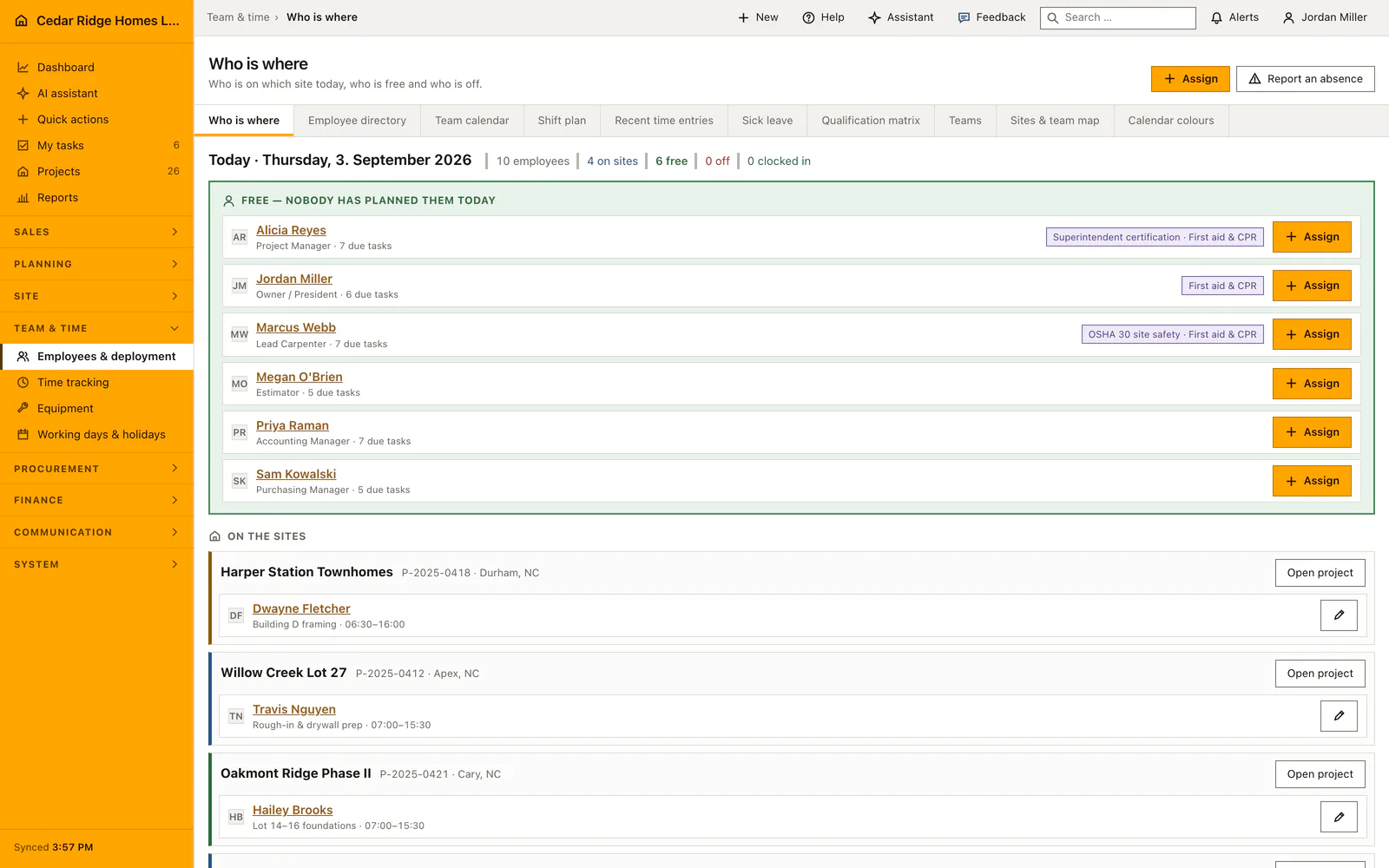
Two permissions divide the module. workforce.view opens the list and My tasks, lets somebody report progress on work they carry, and lets them take unclaimed work with I will take this. workforce.manage creates, assigns, edits, reviews and deletes. Without it the table holds only your own tasks plus what nobody has claimed, and the subline names how many rows are being held back, so a narrowed board is never mistaken for the whole site.
Creating a task with phase, team and approval mode
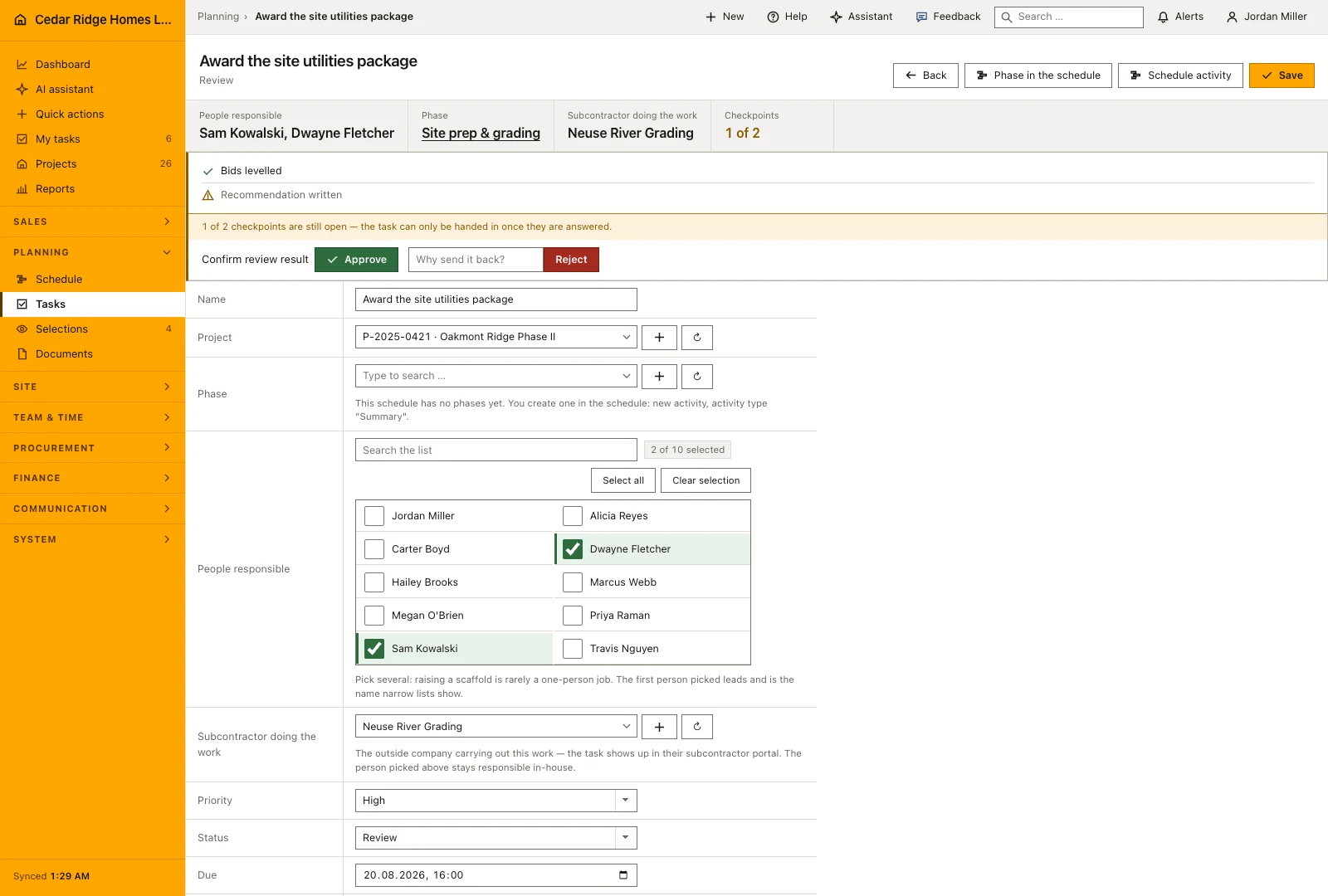
Create task asks for a title and a priority of low, normal, high or critical, plus an optional project, due date, description and comma-separated labels. Naming a schedule activity is the shortcut worth taking: the project comes across with it and so does the phase, so nobody types the same chunk of the plan twice. People responsible is a multiple choice, and the first person picked leads. That name appears in narrow lists and in one-line reminders.
The checklist field takes the wording of the checkpoints, one per line. A checkpoint is a tick box and carries no owner and no date of its own; work that needs those becomes a separate task in the same phase. Approval mode is the last decision on the form: signed off by a manager sends the finished task to a reviewer, while no sign-off means the answered checkpoints are the check.
Reporting progress and handing a task in
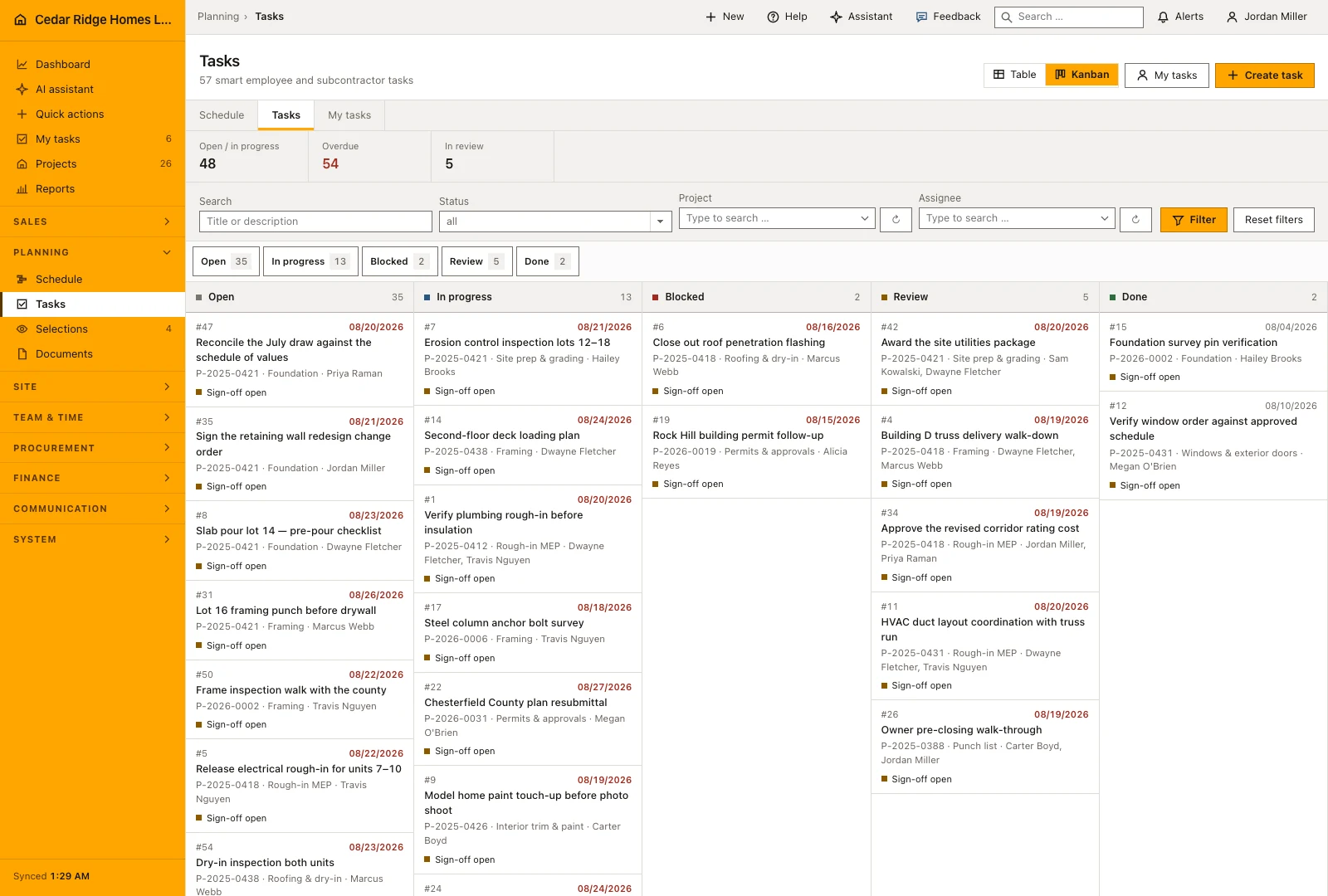
A list row carries a one-click button that follows the stored transition: Started moves an open task to In progress, Hand in moves it towards Review. Assignees may set Open, In progress, Blocked and Review on their own work. Done is deliberately missing, because handing the task in and having it looked at is how work finishes. My tasks strips the board down to what is on one person today, which is the view a phone in a cold stairwell wants.
Pressing Hand in on a task that still has open checkpoints does not produce an error page. It opens the hand-in screen, which asks the points the task declared and posts the ticks together with the transition. Writing the same status a second time changes nothing and notifies nobody. After handing in, a tradesman lands back on My tasks while a planner lands on the task itself, where the decision now waits.
Who may approve, reject and delete a task
A task in Review under manager sign-off shows Approve and Reject with the checkpoint state beside them. Approving writes Done, the sign-off state Approved, and the reviewer with the moment. Rejecting demands a reason: the note is mandatory, the task goes back to In progress rather than sitting in Review with the same two buttons, and everyone assigned is told what came back and why. Every decision is recorded in the audit trail.
Taking unclaimed work is deliberately not assignment. Claiming needs only workforce.view and works only while the task belongs to nobody, so it cannot become self-assignment. Deleting needs workforce.manage and removes the assignments with the task. That is the exit for a task created on the wrong project, because pushing it through a review to Done would otherwise count as work that happened. The filter Nobody assigned also finds tasks left behind by a leaver.
How tasks connect the schedule, the assistant and notifications
A phase heading in the schedule leads straight to its work, because the list understands a phase parameter as well as a project. Free-text search covers title and description, and the project dropdown accepts both the application-wide spelling and this module’s older one, so saved links and bookmarks keep working. Tasks generated together with a project template carry a note saying where they came from.
The assistant can create, assign, update and complete a task, all under workforce.manage. It never guesses identifiers: a phase is named in words and resolved inside one project, a person is named in full, and an ambiguous name comes back as a question instead of a wrong write. Deleting through the assistant always waits for a person. Handing a task in notifies everyone who may approve, and a rejection notifies everyone assigned.
Task example: a roof dry-in check with checklist and sign-off
For the clubhouse at Riverbend Landing, Dwayne Fletcher opens Create task and names it Roof dry-in check before insulation. He picks the schedule activity Roofing & dry-in, which brings project and phase across in one step, sets the priority to high, puts the due date at 08/24/2026 and assigns Hailey Brooks first and Travis Nguyen second, so Hailey leads and stands in the one-line reminders. Five checkpoints go into the checklist, one per line: underlayment laps running uphill, drip edge closed at the eaves, every penetration booted, the ridge vent cut open, no exposed fasteners on the low-slope section. The approval mode stays at signed off by a manager.
Hailey moves the task to In progress from her phone and ticks four checkpoints on the roof; the ridge vent point stays unanswered because the cut sits under the cap shingles. Once the roofer confirms it the next morning she presses Hand in, the hand-in screen asks exactly that remaining point, and the answer posts together with the move to Review. Home Builder Software notifies everyone holding workforce.manage. Dwayne finds the five answered points beside Approve and Reject, approves, and the record now reads Done with his name, the timestamp and the sign-off state Approved. A rejection would have demanded a written reason and sent the check back to In progress.
Construction task management: checks before saving
An unanswered checkpoint blocks Review and Done, in the list button, on the detail form and on the server alike.
Assignees may set Open, In progress, Blocked and Review on their own tasks; Done stays with workforce.manage.
A rejection without a written reason is refused, and the task returns to In progress rather than staying in Review.
Claiming works only while a task belongs to nobody, which keeps taking free work from becoming self-assignment.
A schedule activity from another project is rejected, because the activity already decides the project and the phase.
Construction task management: common mistakes
Writing checkpoints after the work is finished turns them into a formality. Agree them while the task is still on paper, because each one has to be ticked before the task can be handed in.
Assigning somebody who may only open selected projects leaves them a task they will never find. The form warns and names them; grant project access under Users and permissions, or pick another person.
Switching approval mode on a running task and expecting the sign-off state to follow. It is rewritten only while no decision exists; an approved or rejected task keeps the record it already has.
The product page describes the same module from the business side, with the decisions it supports and the modules it connects to.
See the product pageFrequently asked questions
Can more than one person own a task?
Yes. A task can have several assignees; the first person is shown as the lead in compact views.
How does task acceptance work?
Tasks can require superintendent review, or complete after all checkpoints are answered when review is disabled.
Configuring this part for your own company?
Describe the sequence you follow today and the result you need at the end of it. We can walk through the settings that produce it.